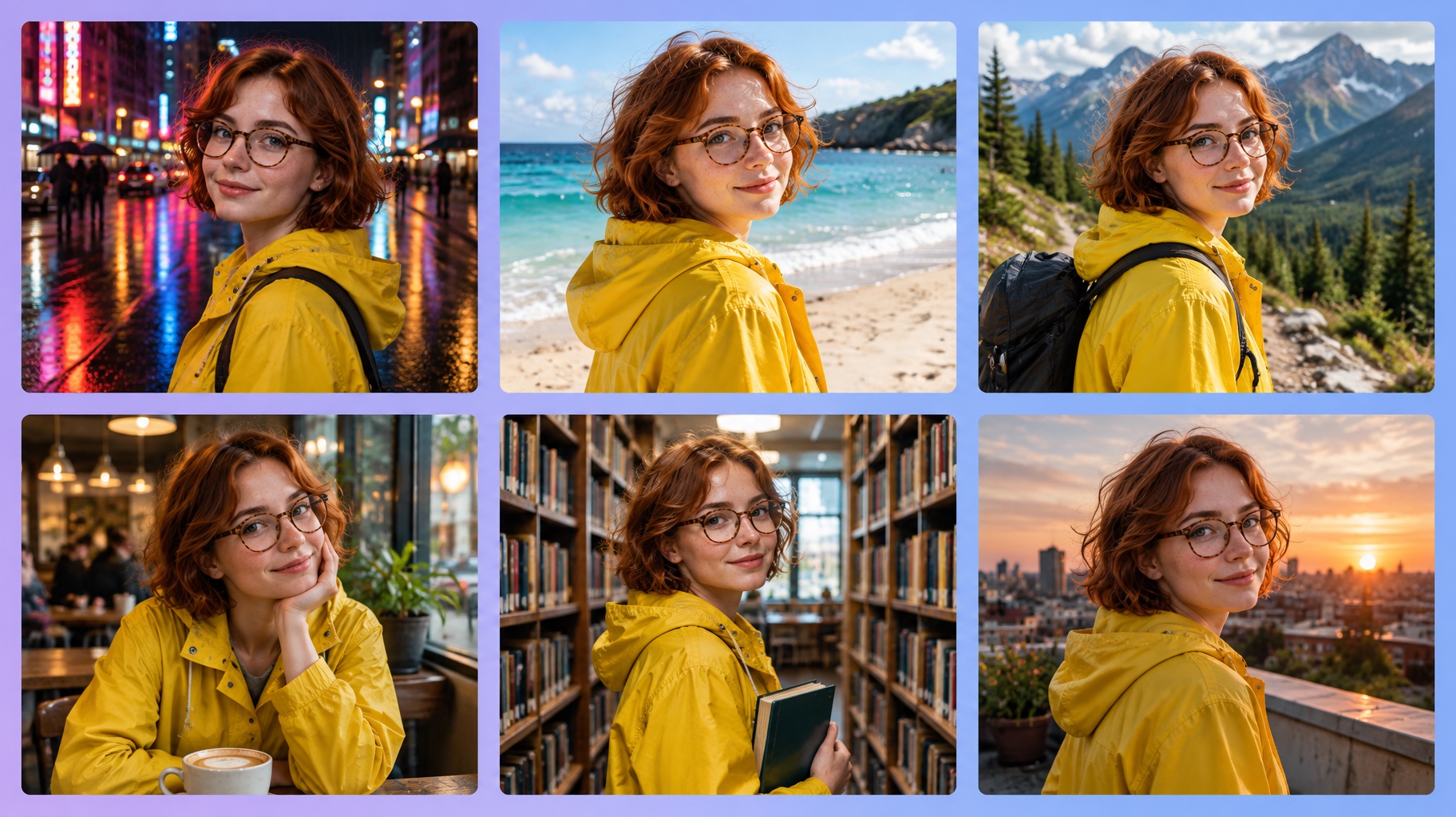
Consistent character AI lets you design a character once and keep it recognizable in every new image and video: same face, same hair, same outfit, new scene. It is the difference between a real story (a comic, a children’s book, a mascot campaign, a short film) and a pile of lookalikes. In this guide you’ll learn four methods that work today in the Easy-Peasy.AI Image Generator and Video Generator, with real examples, prompts you can copy and fixes for the most common problems.
Updated October 7, 2026: fully rewritten for today’s models, including GPT Image 2.5, Nano Banana 2.1 and reference video models such as Seedance 2.5 Reference. The first version of this guide was built around FLUX.1 Kontext.
What Is a Consistent Character in AI?
A consistent character is an AI-generated person, animal or cartoon that keeps the same face, body, hairstyle and signature outfit in every image or video, even when the pose, background, lighting or art style changes. AI tools achieve this by working from a reference image instead of a fresh text description each time.
All three results below started from the same sample photo (top left), made with our “Starring You” templates and GPT Image 2.5 Sunburst Medium:
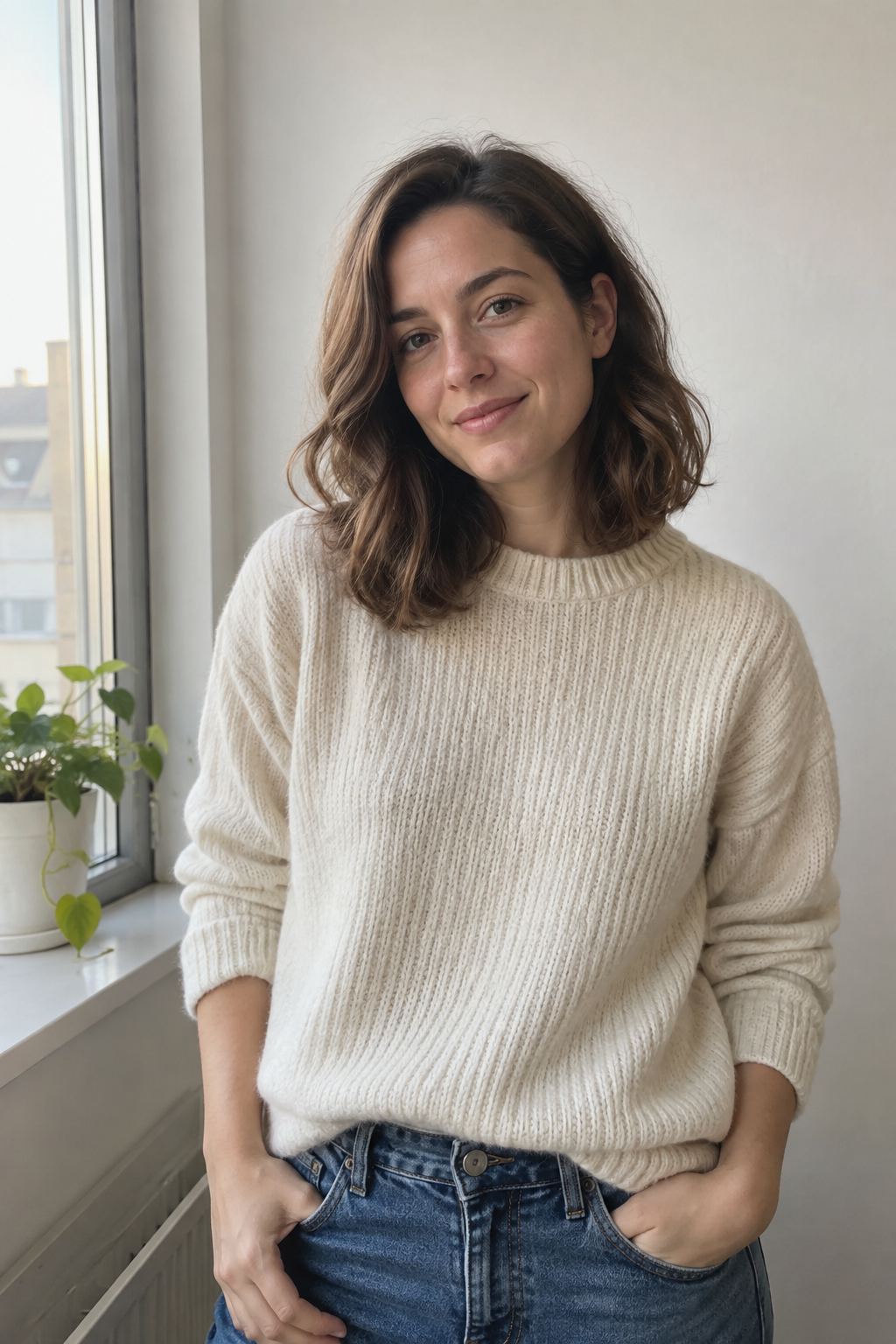 The reference photo The reference photo |
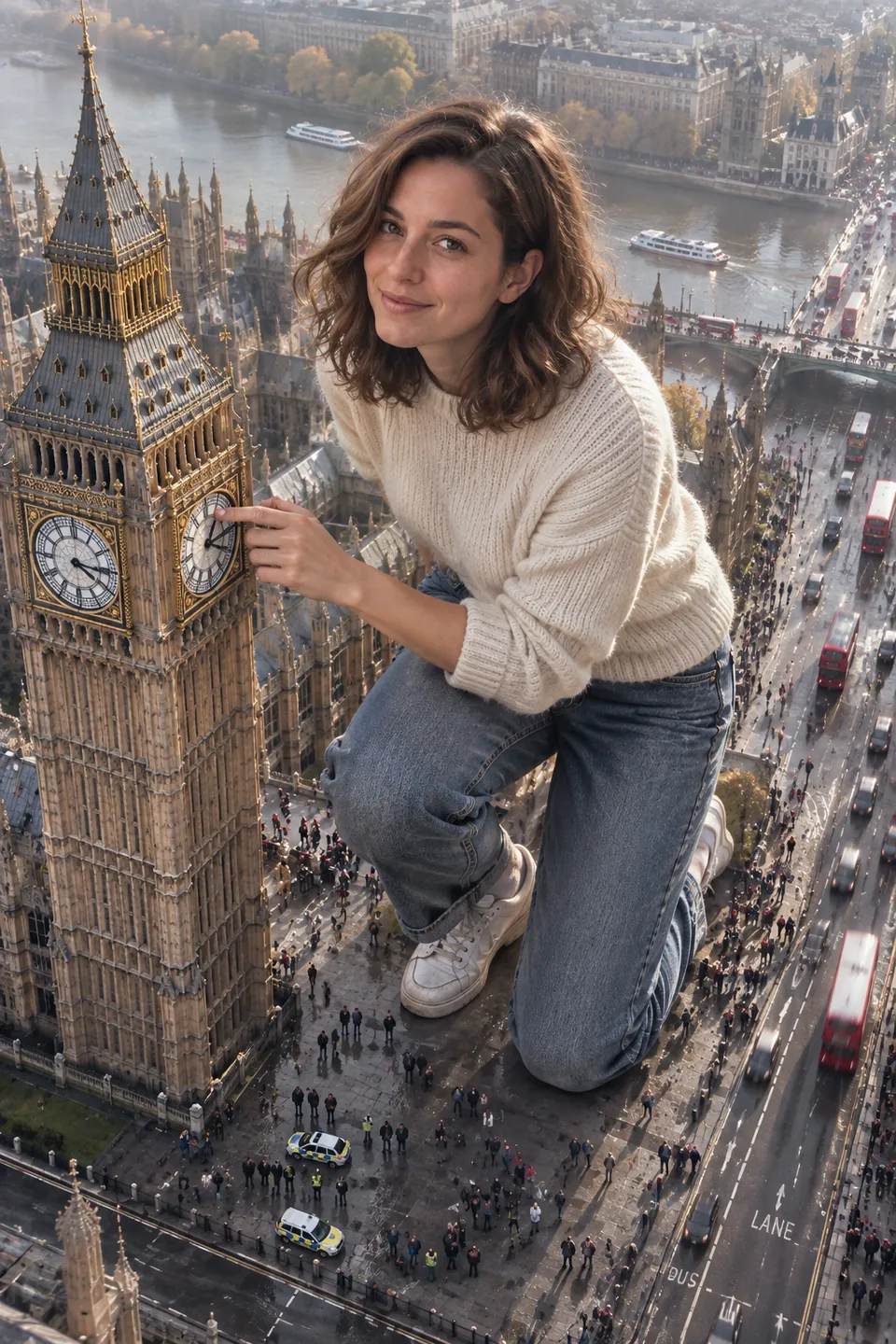 Giant You in the City Giant You in the City |
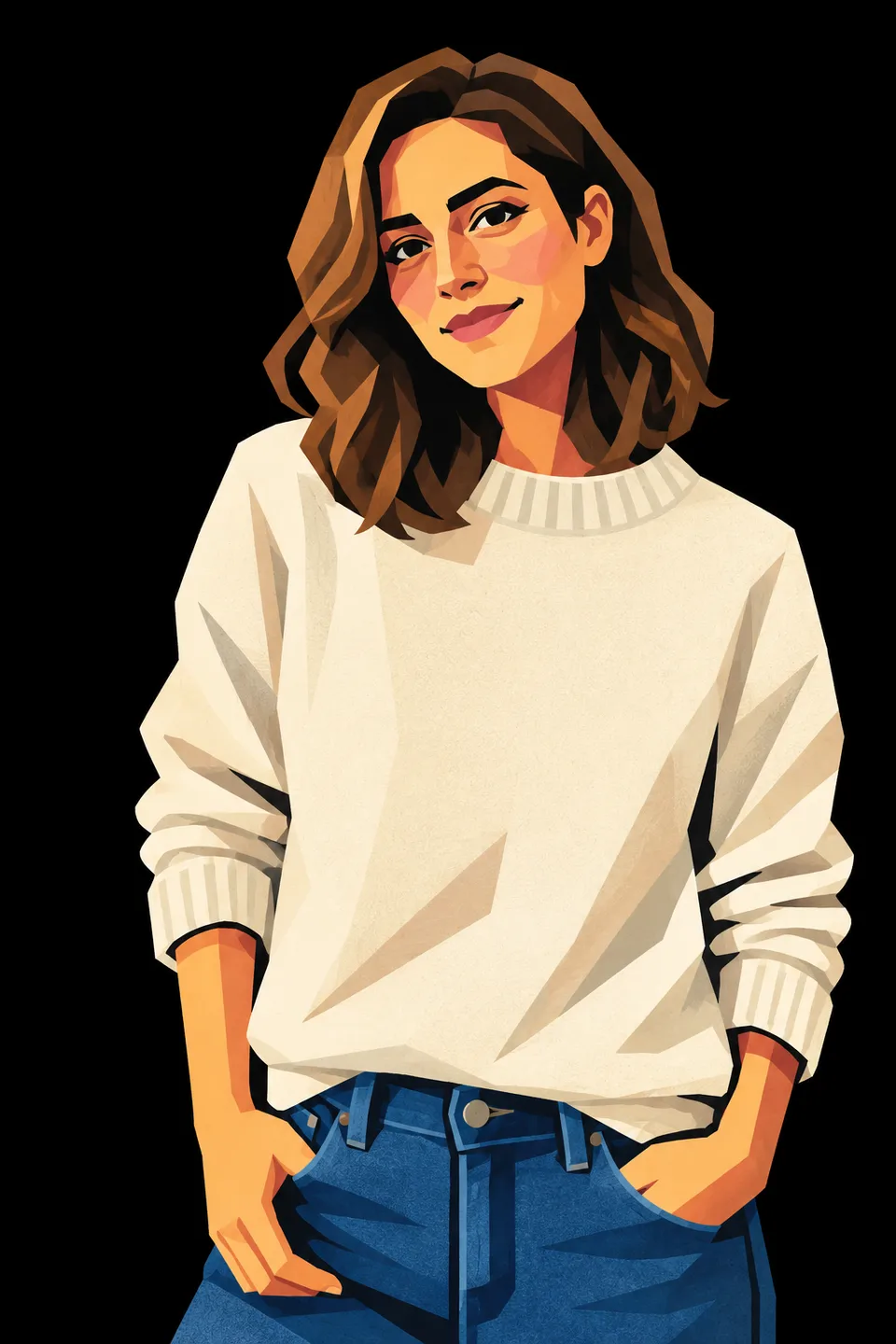 Cubist Vector Portrait Cubist Vector Portrait |
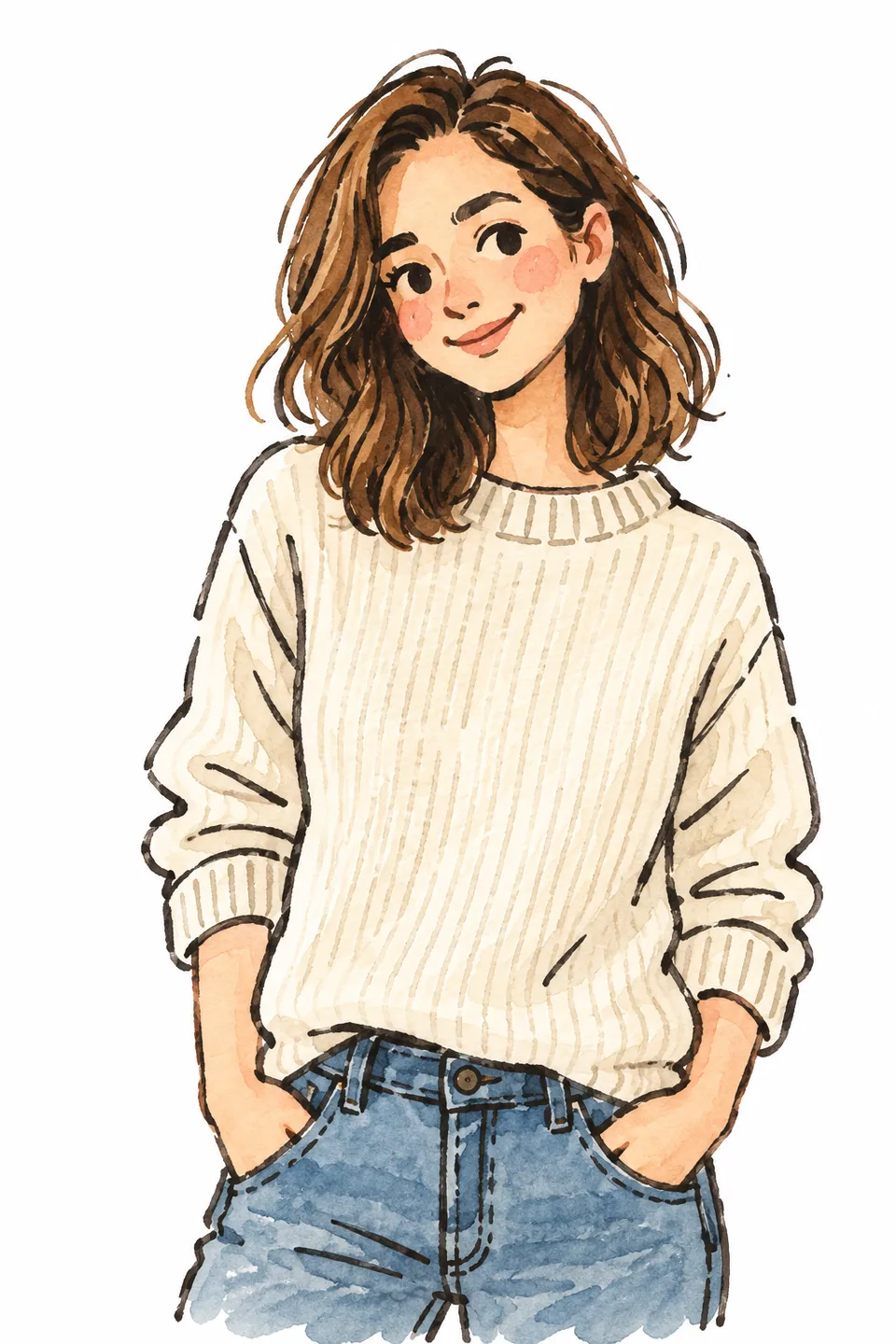 Minimal Doodle Portrait Minimal Doodle Portrait |
Why is that hard without a reference? An image model doesn’t remember the picture it made a minute ago, and a description like “a woman with wavy brown hair” fits thousands of faces, so you get a slightly different person every time. A reference image removes the guesswork: the model copies the character it can see.
Consistent Character AI: 4 Methods at a Glance
You can combine these methods freely.
| Method | Best for | Where you do it |
|---|---|---|
| 1. Reference image editing | Putting the same character in new scenes | AI Image Generator, Character card |
| 2. Character sheet first | Comics, books, mascots and long series | AI Image Generator, then reused as your reference |
| 3. One change at a time | Adding or swapping details without touching the face | Edit image window |
| 4. Video references and voice | Animated scenes, ads, reels and short films | AI Video Generator, Add media |
How to Create Consistent Characters in AI (Step by Step)
Method 1 is the one you’ll use most: attach a picture of your character and describe the new scene. It works for photos of people, pets and products, and for drawn characters.
Step 1: Add your character as a reference
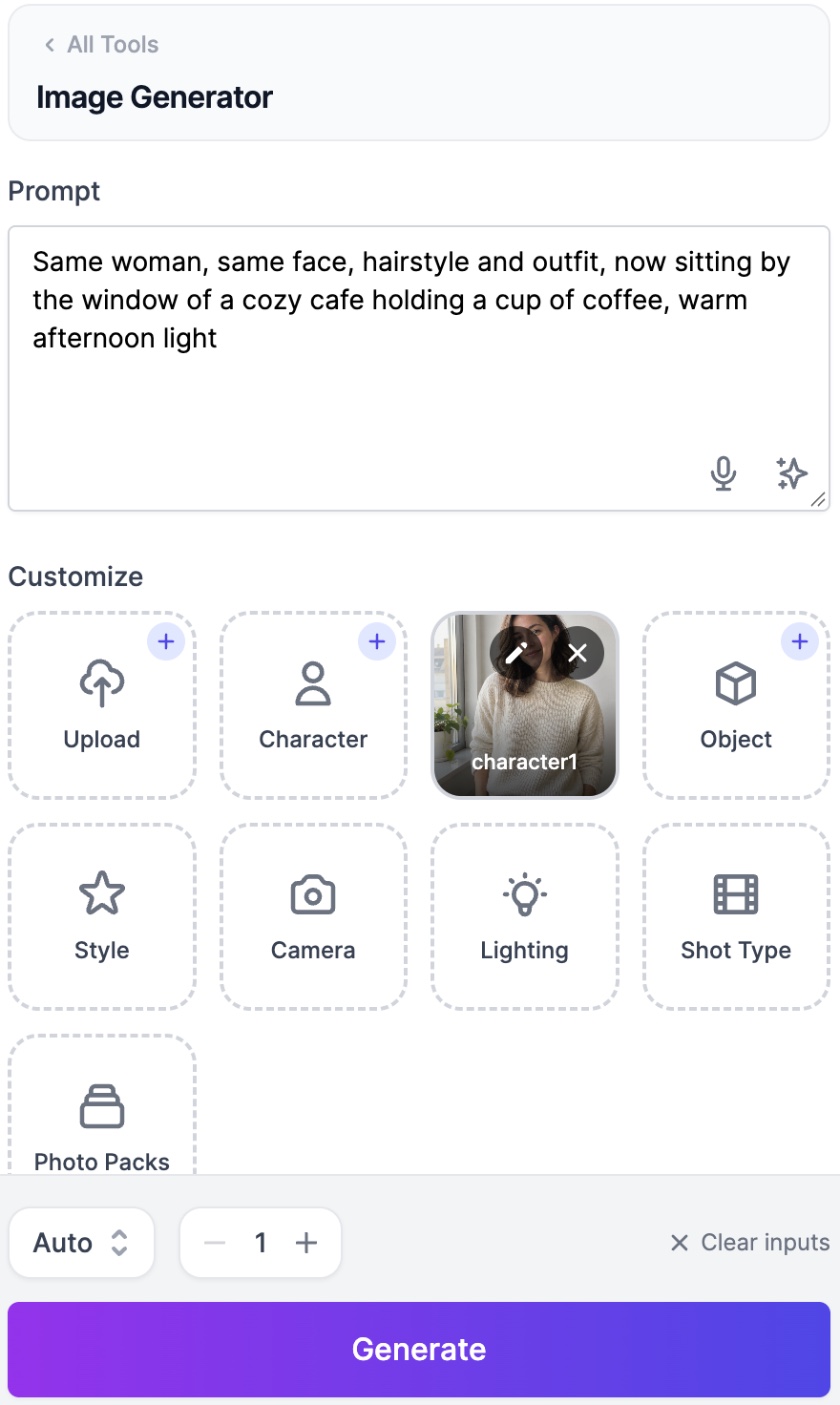
Open the AI Image Generator. Under Customize, click Character, then Upload new to add a photo or drawing of your character, or pick one you saved before. In the same window, the History tab lets you pick any image you generated earlier.
Characters you upload stay in your Character library for next time. Pick a sharp, well-lit image where the face is clearly visible.
Step 2: Describe the new scene, not the whole character
Your reference already shows the character, so the prompt only needs to say what stays the same and what changes:
Same woman, same face, hairstyle and outfit, now sitting by the window of a cozy cafe holding a cup of coffee, warm afternoon light
For a drawn character, mention the art style too: Same cartoon fox, same orange scarf and art style, now ice skating on a frozen lake at sunset.
Step 3: Pick an edit model
When an image is attached, the Action menu shows Edit Image with AI and a Model menu appears. The default, GPT Image 2.5 Flare Medium, is a good all-rounder. These are also worth a try:
| Model | Why use it for characters |
|---|---|
| GPT Image 2.5 Flare Medium (default) | Fast, with natural lighting and better reference-photo preservation than GPT Image 2 |
| GPT Image 2.5 Sunburst Medium | Tighter control across multi-step edits, but slower |
| Nano Banana 2.1 | Better character consistency than Nano Banana 2 |
| Seedream 5.0 Pro (paid plans) | Precise control over dense, detailed layouts |
| Ideogram v3 Character (paid plans) | Made specifically for character references |
You can attach up to 8 images in total, for example your character plus a pet or a product. The Action menu also has a Character Reference option built for this job.
Step 4: Keep the shape on Auto and generate
With a reference attached, the size control switches to Auto, which keeps your reference’s shape. Click Generate. Each generation costs credits, and the price is shown before you generate.
Step 5: Reuse the same master reference for every scene
For each new scene, start again from your original character image, not from the last result. Edits of edits slowly drift, while one master reference keeps the face stable across a long series.
Want a head start? Open the Giant You in the City template and click Use this template. The Image Generator opens with the sample photo already attached as your Character, so you can paste the cafe prompt from Step 2 or swap in your own character.
Method 2: Make a Character Sheet First
A character sheet shows your character from the front, side and back, plus a few expressions and key props, all in one image. Animators use them so every drawing matches, and they make great AI references because the model can see every side of the character.
Here is a real one from our AI Animated Short Film workflow template: one photo of Milo, a felted wool doll, turned into a character sheet by GPT Image 2.5 Flare Medium.
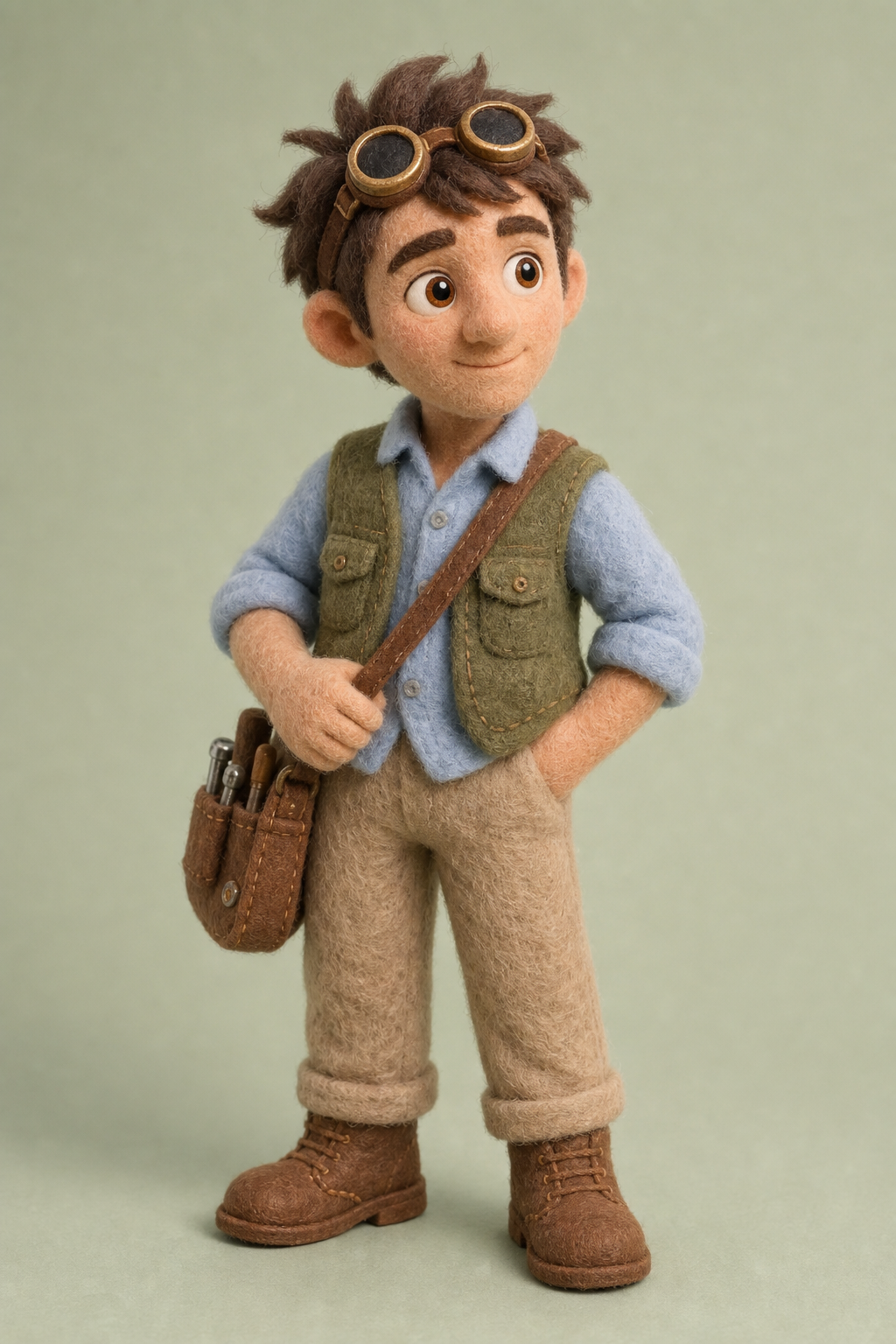 The one photo The one photo |
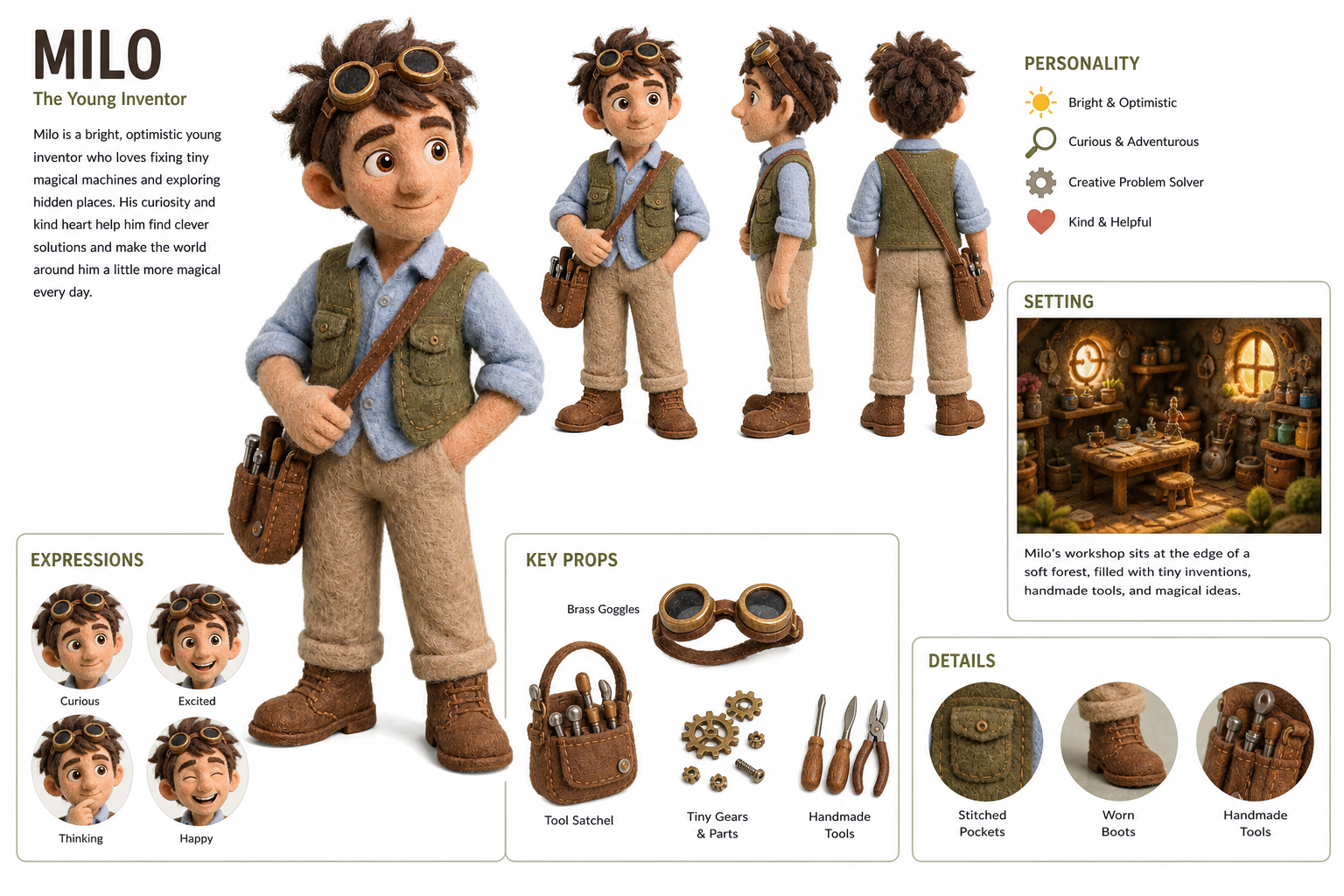 The character sheet (click to enlarge) The character sheet (click to enlarge) |
A character sheet prompt you can copy
Attach your character as the reference, set the shape to 3:2 or 16:9 so every view fits, and use:
Create a character sheet of this character on a plain white background. Show a full-body front view, side view and back view, plus four head close-ups with different expressions: happy, surprised, thinking and angry. Add the props they always carry. Keep the face, hairstyle, colors and outfit exactly the same in every view, in the same art style as the reference.
No reference yet? Describe the character in one detailed sentence (age, face, hair, outfit, colors and art style), then add the layout part of the prompt above.
How to use the sheet
Attach the sheet as your Character for every new image and video, and add this line so the AI copies the character but not the layout:
Use the character sheet only for the face, hair and outfit. Do not copy its background, poses, labels or layout.
That’s how the Milo workflow continues: the sheets of Milo and his friend Nia become a 12-panel storyboard, then this 15-second animated short made with Seedance 2.0 Reference.
Method 3: Edit One Change at a Time
Sometimes you need the same picture with just one thing different. Iterative editing changes one detail per step, so your character stays the same.
When we first wrote this guide, we built a beach-ready cat in three edits. Try it with any image:
- Open your image and click the pencil icon (Edit image).
- Type
Add a small red hat to the cat.and generate. - On the new version, type
Now add black sunglasses to the cat.The hat stays. - Finish with
Change the background to a sunny beach with ocean waves.The cat, hat and sunglasses stay. Only the background changes.
Each edit applies to the latest version, and a row of thumbnails keeps the Original and every edit, so you can click back if a step goes wrong.
For tiny fixes, such as a missing earring, switch from Prompt to Visual and click the exact spot on the image. Our guide to editing AI images with visual annotations shows how.
Method 4: Keep Your Character Consistent in Video
Video is where consistency matters most, because your character must look the same in every frame. There are two ways to do it, plus a way to keep the voice the same.
Animate your character image (image to video)
The simplest way is to animate a picture you already like: click Generate video on any image in the AI Image Generator, or upload it as the Start image in the AI Video Generator. Seedance 2.5 Image, MiniMax H3 Image and WAN 3.0 Image also take an End image for a smooth transition between two pictures.
This works best for short shots. To make your character talk to the camera, click Generate Talking Video on the image instead.
Put your character in new scenes with reference images
Reference-to-video models build a brand-new scene around your character instead of animating one picture. Click Add media, choose Character and pick your character from the same library you use for images. If your model has a Reference version, the page switches to it for you.
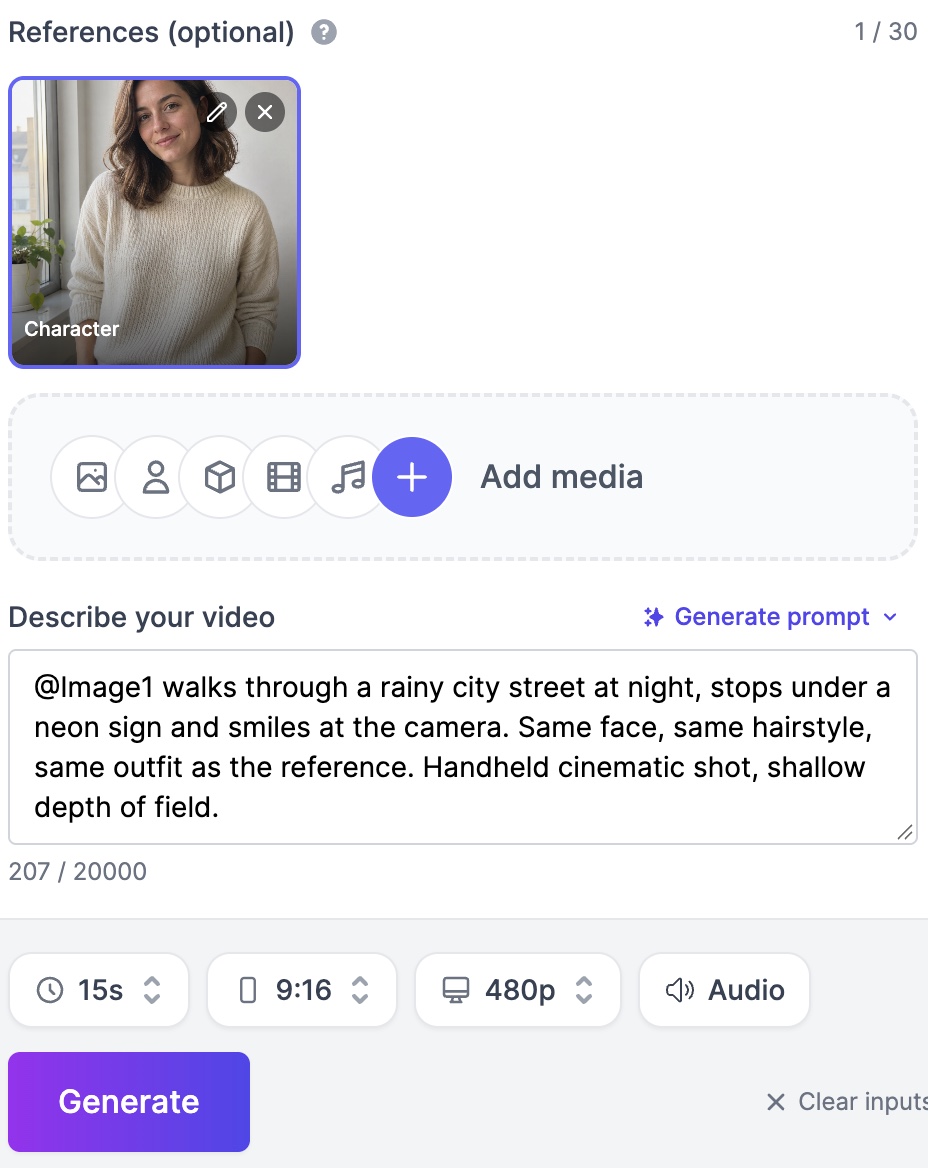
In the prompt, refer to references by position: @Image1 for the first, @Image2 for the second, just like our own video templates do. Good models to start with:
| Model | Reference images | Clip length |
|---|---|---|
| Seedance 2.5 Reference | Up to 30 | 4 to 30 seconds |
| MiniMax H3 Reference | Up to 9 | 4 to 15 seconds |
| WAN 3.0 Reference | Up to 9 | 5 to 30 seconds |
Note that a start image and reference images can’t be combined: adding one clears the other.
Give your character the same voice
If your character talks, keep the voice consistent too. These three Reference models accept reference audio: open Add media, choose Audio and upload a WAV or MP3 clip of the voice. You can trim a long file to the allowed length right in the app.
- Audio always needs at least one image or video reference next to it.
- MiniMax H3 Reference takes up to 3 clips of 2 to 15 seconds each, 15 seconds in total.
- Seedance 2.5 Reference takes up to 10 clips and WAN 3.0 Reference up to 3, with up to 30 seconds in total.
Then say what to take from the clip, for example Voice timbre follows reference audio 1. Our guide to AI condo reels with one consistent face and voice shows a full five-scene project built this way.
Real Examples: The Same Character in Different Scenes
You can open each of these, swap in your own photo and make your own version.
One photo, many video scenes
The Haunted Remote Control template turns the same sample photo into a Seedance 2.5 Reference video: each press of a broken TV remote throws her into a different battlefield, and she stays recognizable. Crystal Amulet Transformation does the same with WAN 3.0 Reference.
Two characters in one shot
The Pet Portrait Stare template uses two references, the woman and a long-haired gray cat, and keeps both of them faithful.
A cartoon hero across a whole picture book
Drawn characters work too. Our Social Stories generator can illustrate each page of a children’s story, and in this example David keeps the same face, blue star sweater and red sneakers on every page:
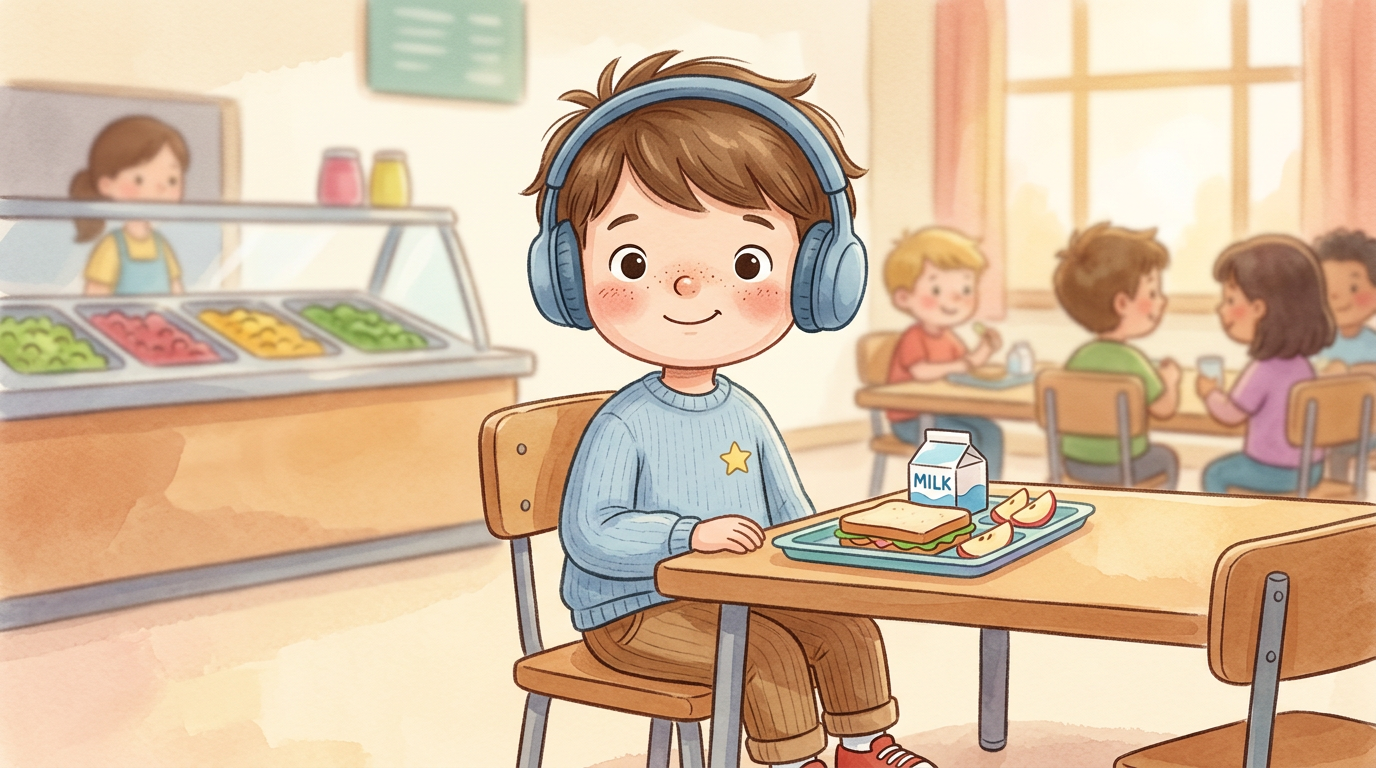 Page 4 Page 4 |
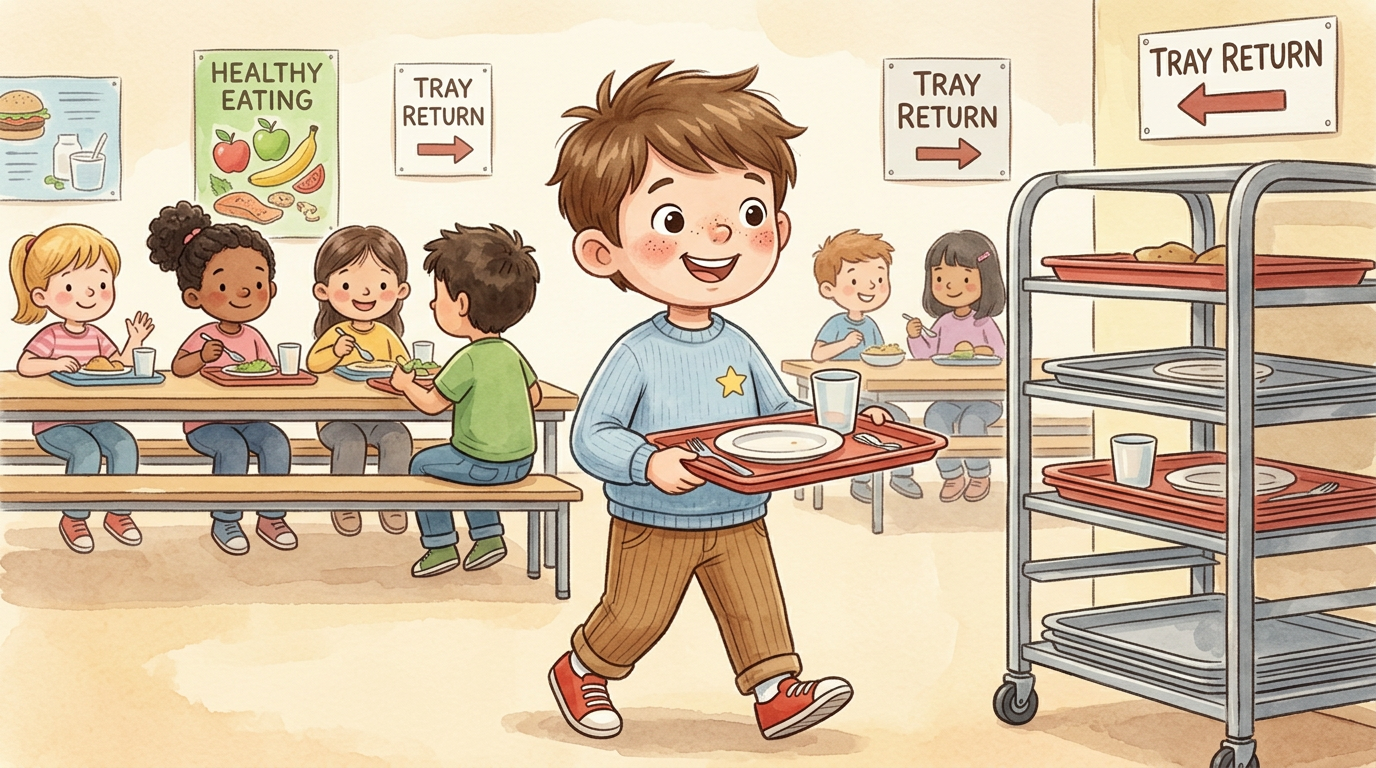 Page 9 Page 9 |
It uses the Method 1 trick: the generator draws page 1 first, then uses that picture as the reference for every other page, with an instruction to keep the identical face, hairstyle, skin tone and clothing. Read more in our guide to creating social stories with AI.
Tips for Better AI Character Consistency
- Write a character card and reuse it word for word, for example:
Mia: 28, shoulder-length wavy brown hair with a side part, brown eyes, light freckles, cream knit sweater, light blue jeans, white sneakers. - Lock the outfit. Clothes drift faster than faces, so name the outfit in every prompt.
- Change one thing per edit: a new background, pose or expression, not all three at once.
- Don’t change the camera angle and the art style in one step. Restyle a simple portrait first, then move it into new scenes.
- Stick to one model per series. Switching models changes the look, even with the same reference.
- Name references by what they show, such as “the woman” and “the gray cat”. Card labels like character1 aren’t sent to the model.
Common Problems and How to Fix Them
| Problem | Fix |
|---|---|
| The face slowly changes over a series | Go back to your original reference or character sheet instead of editing the last result. |
| The outfit or hairstyle changes | Describe them in the prompt and add “same outfit, same hairstyle”. |
| Two characters blend into one | Give each its own clear reference and say who does what, such as “the woman holds the gray cat”. |
| The sheet’s layout or labels show up in the scene | Add “do not copy the sheet’s background, poses, labels or layout”. |
| The picture comes out in the wrong shape | Leave the size on Auto, or use the same ratio for every image in the series. |
| A photo is refused | Safety filters block some images, such as photos of famous people. Use your own photo or an original character. |
Frequently Asked Questions
What does consistent character mean?
It means a character looks like the same individual every time it appears: same face, body, hair and signature outfit, even when the scene, pose or art style changes. In AI art and video, it is the opposite of getting a new lookalike with every prompt.
How do you generate consistent AI characters?
Give the AI a reference image instead of describing the character from scratch each time. Attach your character or a character sheet, describe only the new scene and reuse the same master reference for every image and video.
Which AI model is best for consistent characters?
There is no single winner, so try two or three on the same reference. GPT Image 2.5 Flare Medium (the default) is a fast all-rounder, and Nano Banana 2.1 improves character consistency over Nano Banana 2. For video, Seedance 2.5 Reference accepts the most references: up to 30.
Can I use my own face?
Yes. Upload a clear photo of yourself as the Character and describe the scene; our “Starring You” templates are built for exactly this. Only use photos you have the right to use, and expect safety filters to block some images, such as photos of celebrities.
Does it work for anime and cartoon characters?
Yes. A consistent anime character works the same way: attach your drawing as the reference, and pick a style such as Anime, Manga, Cartoon, Pixar 3D or Studio Ghibli from the Style card if you want a new look. You can also design a new character with the AI anime generator and turn it into a character sheet.
Can I keep the character consistent in video?
Yes. Animate your character image as the start image, or add it as a reference in Seedance 2.5 Reference, MiniMax H3 Reference or WAN 3.0 Reference to create new scenes. Add a reference audio clip to keep the voice the same too.
Can I still use FLUX Kontext for consistent characters?
Yes. Flux Kontext Pro and Flux Kontext Max are still in the Edit Image with AI model list for edits with one or two images. With three or more images, the page switches to a model that handles several references, such as GPT Image 2.5 Flare Medium.
Can I try this on the Free plan?
Yes. Free accounts can upload reference images and edit with models such as GPT Image 2.5 Flare Medium and Nano Banana 2.1, while premium models like Seedream 5.0 Pro need a paid plan. For video, the Free plan can use Seedance 2.0 Mini Reference for 480p clips of up to 5 seconds. Every generation costs credits, and the price is shown before you generate.
Create Your First Consistent Character Today
Pick one character, add it as a reference in the AI Image Generator and put it in three new scenes. When you like the look, make a character sheet, then bring the same character to life in the AI Video Generator. Consistent character AI takes a few minutes to learn and saves you hours of regenerating lookalikes.