Most AI agents hit a wall the moment a task needs a site you are logged into. LinkedIn, your CRM, an internal admin panel, a supplier portal: no public API, no way in. The new Easy-Peasy.AI Browser Agent removes that wall. It is a Chrome extension that lets Marky, your AI agent, work inside the browser you already use, with your logins, your cookies, and your tabs. Pages open in a tab you can watch and take over at any time. In this guide, we’ll show you how to connect your browser in about a minute and what you can do once it is connected.
What Is the Easy-Peasy.AI Browser Agent?
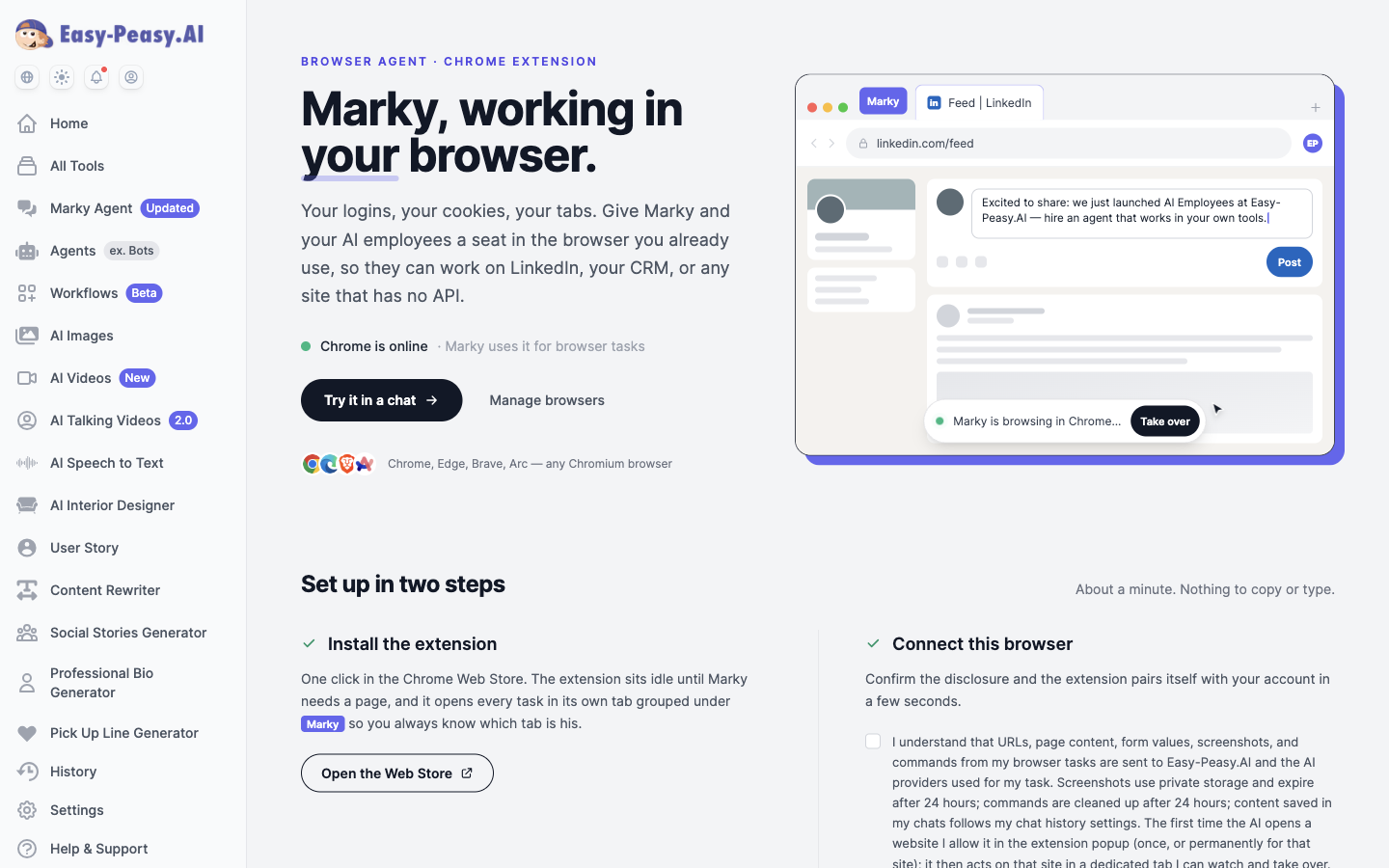
The Browser Agent is a free Chrome extension, available in the Chrome Web Store, that connects your own browser to your Easy-Peasy.AI account. Once it is paired, Marky can open websites, read pages, fill in forms, click buttons, and scroll, all inside a dedicated tab in your Chrome.
Until now, Marky did all of its browsing in a cloud browser: a clean, remote Chrome that starts with no logins. That is perfect for public research, but useless for anything behind a sign-in. The Browser Agent flips that around. Because it runs in your real browser, Marky sees exactly what you see when you are signed in, so it can work on sites that have no API at all.
It works in Chrome, Edge, Brave, Arc, and any other Chromium-based browser that installs extensions from the Chrome Web Store.
Why Let an AI Agent Work in Your Own Browser?
An AI agent with a browser is useful. An AI agent with your browser is a different category of useful. Here is who gets the most out of it:
- Sales and recruiting teams who research prospects, review profiles, and draft outreach on LinkedIn, where there is no API for individual users.
- Operations and support staff who update records in a CRM, help desk, or back-office tool that only exists as a web app.
- Marketers who pull numbers from ad managers, analytics dashboards, and social platforms into one summary.
- Founders and small teams who want their AI employees to run routines on internal tools without building integrations first.
- Anyone who is tired of copying data between tabs by hand.
The other big reason is control. The cloud browser is invisible; your browser is right there. You can watch every step, click into the tab at any time, and Marky waits until you hand it back.
How to Connect Your Browser to Marky (Step-by-Step)
Setup is two steps and takes about a minute. There is nothing to copy or type.
Step 1: Install the Extension
Open the Easy-Peasy.AI Browser Agent in the Chrome Web Store and click Add to Chrome. The extension sits idle until Marky needs a page, and it opens every task in its own tab, grouped under a purple Marky label, so you always know which tab is his.
Step 2: Connect This Browser
Right after installing, the extension opens the Browser Extension page in your account (you can also reach it any time from Marky’s Connectors menu). Tick the data disclosure, click Connect this browser, and wait a few seconds. The extension pairs itself with your account. When the status line at the top of the page turns green and says your browser is online, you are done.
If you are pairing a second computer where you are not signed in to Easy-Peasy.AI, the page offers a one-time code you can enter in the extension popup instead. For your main browser you will never need it.
Step 3: Check “My Browser” in Connectors
Open Marky, click the + button in the composer, and choose Connectors. The new My Browser row sits at the top of the list with a live Online badge and an on/off toggle, next to Gmail, Google Calendar, Notion, and your other connectors.
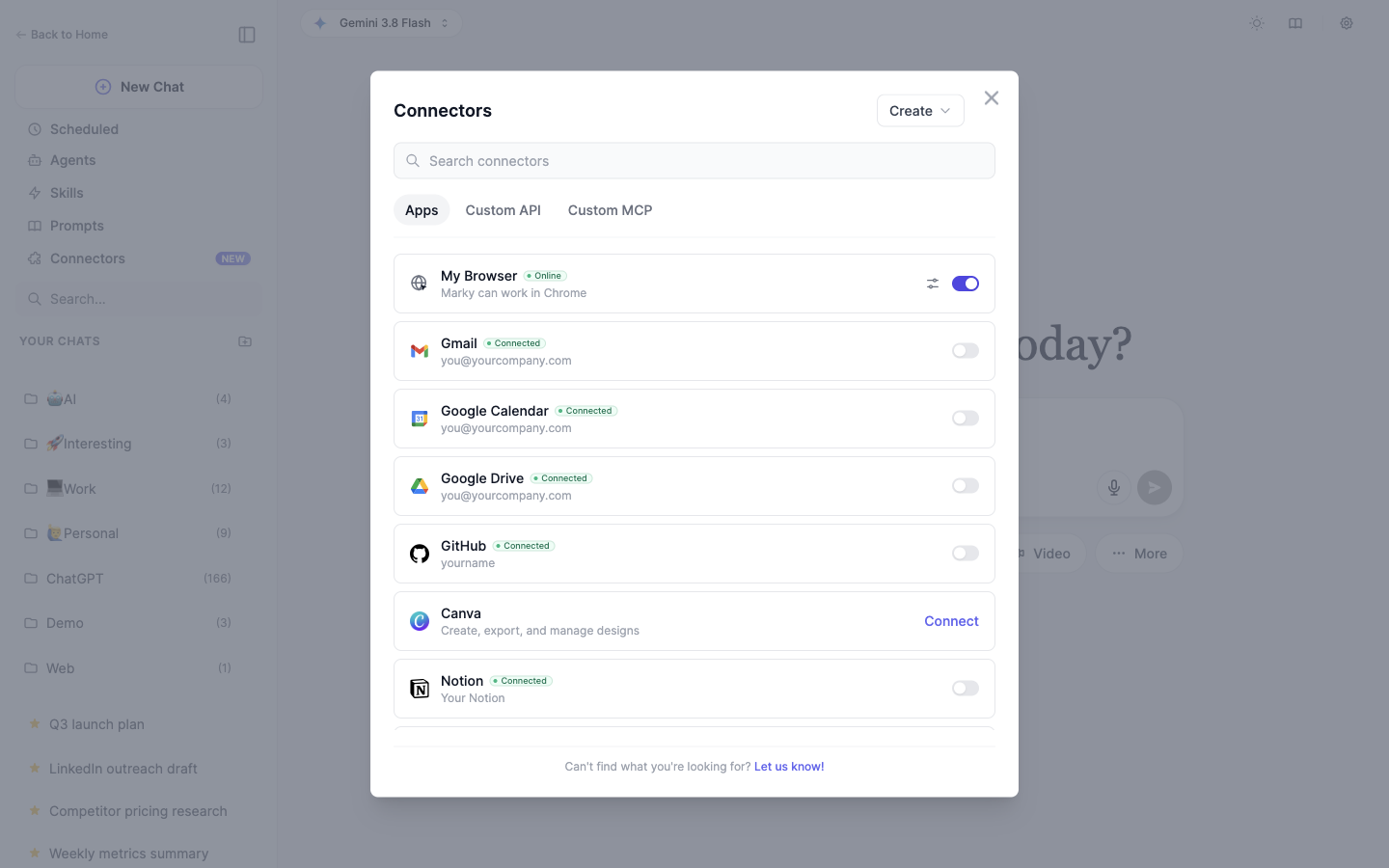
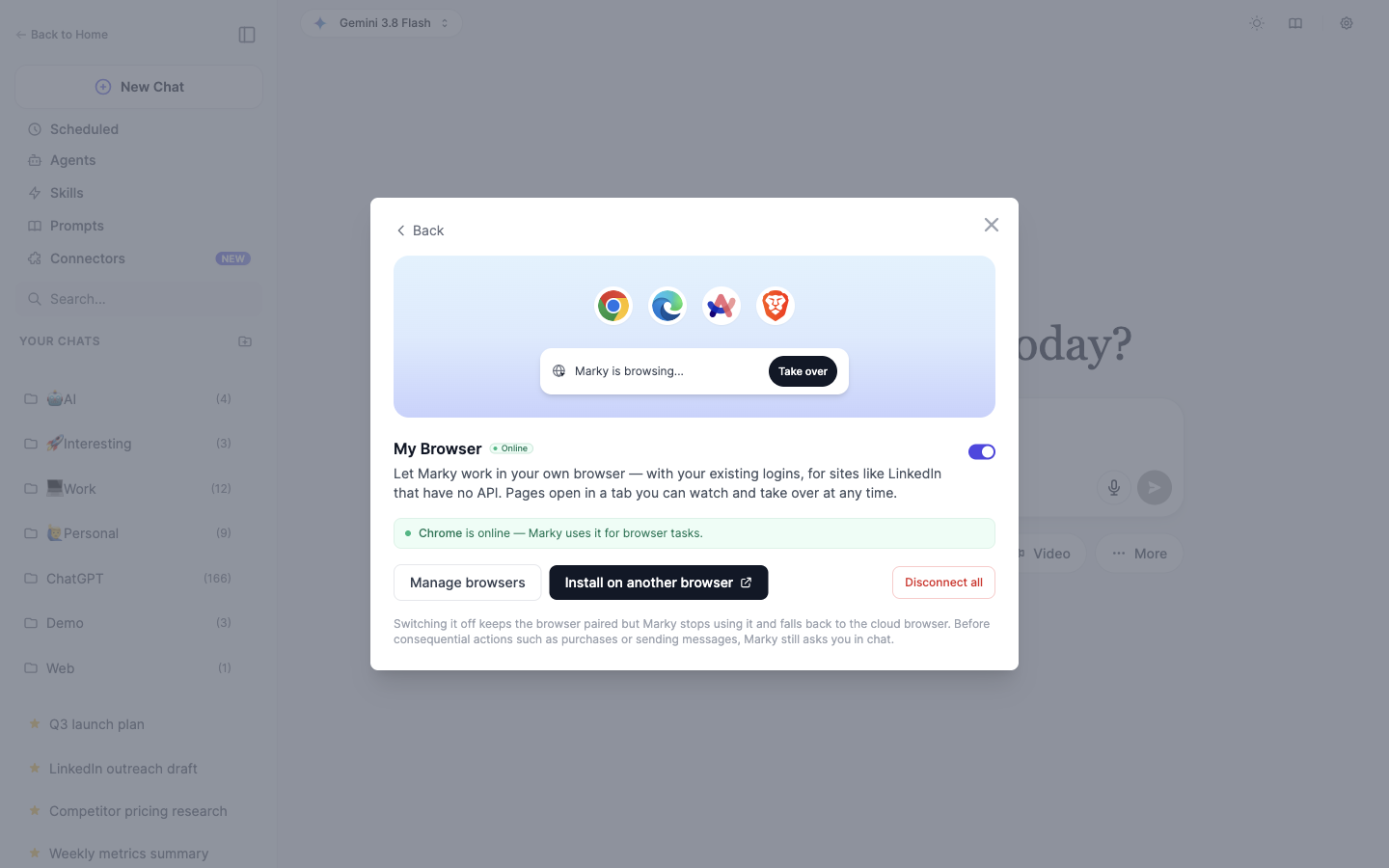
Click the row to see the details: which browser is paired, whether it is online right now, and buttons to manage browsers or install the extension on another computer.
Step 4: Give Marky a Task
While your browser is connected, Marky uses it for browser tasks by default. You do not need to say anything special. Try a simple one first:
Open news.ycombinator.com in my browser and give me the top 3 stories with one line on why each matters.
Marky opens the page in a new tab in your Chrome, reads it, and reports back in chat. The Marky’s Computer panel on the right shows exactly what it is looking at in your browser as it works.
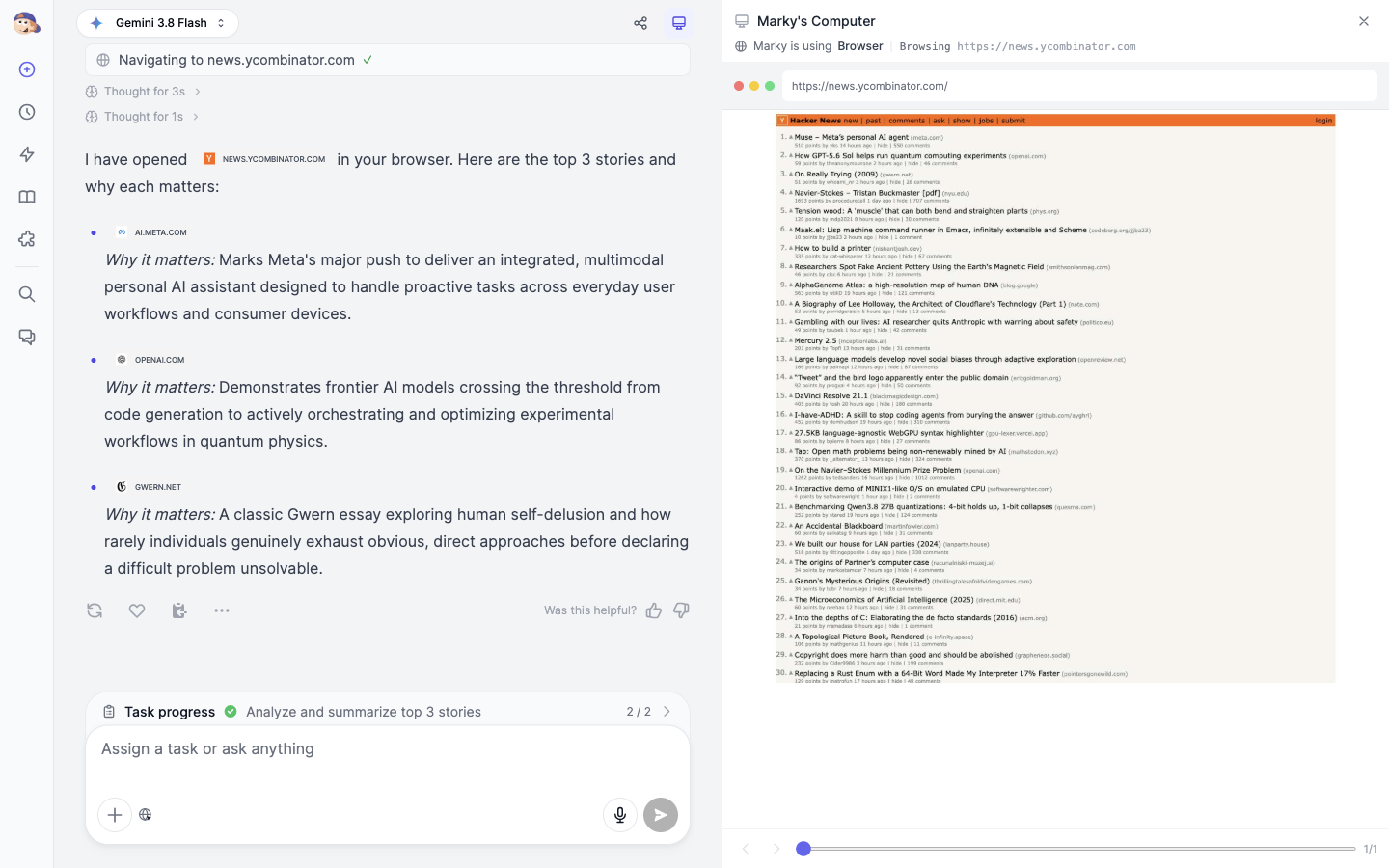
Once that works, point it at something behind a login:
Open my LinkedIn notifications and summarize who engaged with my last post.
Step 5: Approve the Site (First Time Only)
The first time Marky opens a website, the extension asks for permission in its popup: Allow on this site, Just this once, or Deny. Choose “Allow on this site” for the tools you use every day and it will never ask again for that site. You can review and remove allowed sites from the popup at any time.
What You Can Do With It
Here are a few tasks that were out of reach for the cloud browser and now just work:
Research on LinkedIn
Open the LinkedIn profile of the person in this email signature and give me three talking points for a first call.
Update your CRM
Open the deal for Acme Corp in our CRM, set the stage to Proposal Sent, and add a note that the proposal went out today.
Pull numbers from dashboards
Open our Meta Ads Manager and Google Analytics tabs and put yesterday’s spend, clicks, and conversions in a table.
Work inside internal tools
In our admin panel, find the last five refund requests and list the order numbers and reasons.
Anything consequential, such as sending a message, submitting a form that cannot be undone, or making a purchase, Marky checks with you in chat first.
My Browser vs. the Cloud Browser
Both browsers stay available. Here is when to use which:
| My Browser (extension) | Cloud browser | |
|---|---|---|
| Logged-in sites | Yes, uses your existing sessions | No, you would have to sign in through the takeover view each time |
| Visibility | A real tab in your Chrome you can watch and take over | Screenshots in the Marky’s Computer panel, plus a live takeover view |
| Needs your computer on | Yes, Chrome must be open | No |
| Site permissions | You approve each site once | Not needed |
| Best for | Your accounts, internal tools, sites without an API | Public research, scheduled tasks while you are away |
Switching the My Browser toggle off in Connectors keeps your browser paired but sends all browser work back to the cloud browser. Switch it on again whenever you want Marky back in your tabs.
Tips for Getting the Best Results
Allow your everyday sites permanently
Pick “Allow on this site” for the tools you use daily. Scheduled tasks and AI employees that hit a site you have not approved yet will wait for you and time out if you are away, so approving up front keeps automations flowing.
Keep Chrome open for routines
If an AI employee or a scheduled task uses your browser, your computer needs to be on with Chrome running. For anything that must run while your laptop is closed, the cloud browser is the better fit.
Use the tab, not the chat, for logins and 2FA
If a site asks for a password or a verification code, do it yourself in Marky’s tab. Marky never asks for your passwords and does not need them; it simply continues once you are signed in.
Say “in my browser” when it matters
Marky already prefers your browser while it is connected, but if you want to be explicit, say “in my browser” or “in the cloud browser” in your prompt and Marky will follow.
How It Works Behind the Scenes
For the curious, here is what happens when you send a browser task:
- Pairing — the extension exchanges a one-time code for a device token tied to your account. Only that token can receive commands, and you can revoke it from the Browser Extension page or the extension popup at any time.
- Commands — Marky queues a command such as “open this URL” or “click this element.” The extension picks it up, checks that you have allowed the site, and runs it in the dedicated Marky tab.
- Results — the extension sends back the page content and a screenshot so Marky can decide the next step. Screenshots go to private storage and are deleted after 24 hours; commands are cleaned up after 24 hours as well.
- Your turn — if you click into the tab, Marky pauses. When you are done, tell it in chat and it carries on from the current state of the page.
Nothing runs in the background without a task from you or one of your AI employees, and the extension does nothing at all until Marky needs a page.
Frequently Asked Questions
Do I need a pairing code?
No. When you click Connect this browser on the setup page, the extension pairs itself in a few seconds. The one-time code only appears as a fallback for pairing a second computer where you are not signed in.
Which browsers are supported?
Chrome, Edge, Brave, Arc, and any other Chromium-based browser that can install extensions from the Chrome Web Store. Safari and Firefox are not supported.
Can Marky see my passwords?
No. Marky works inside sessions you have already signed into and never asks for or stores your passwords. If a site needs a login or a verification code, you handle it in the tab yourself.
What happens if my computer is off?
Marky falls back to the cloud browser for new tasks. Scheduled tasks that need your browser wait for it to come back online and time out if it does not.
How do I stop it?
Three ways: click Stop in the extension popup, disconnect the browser on the Browser Extension page, or switch the My Browser toggle off in Connectors. Actions that have already completed cannot be undone, so Marky asks before anything consequential.
Does it cost extra?
The extension is free. Browser tasks use your Marky Agent plan the same way as any other chat.
Give Marky a Seat in Your Browser
The Browser Agent turns every site you can log into, with or without an API, into something Marky can work on. Install the extension, connect your browser, and hand off the copy-and-paste. Connect your browser to Marky and try your first task today.