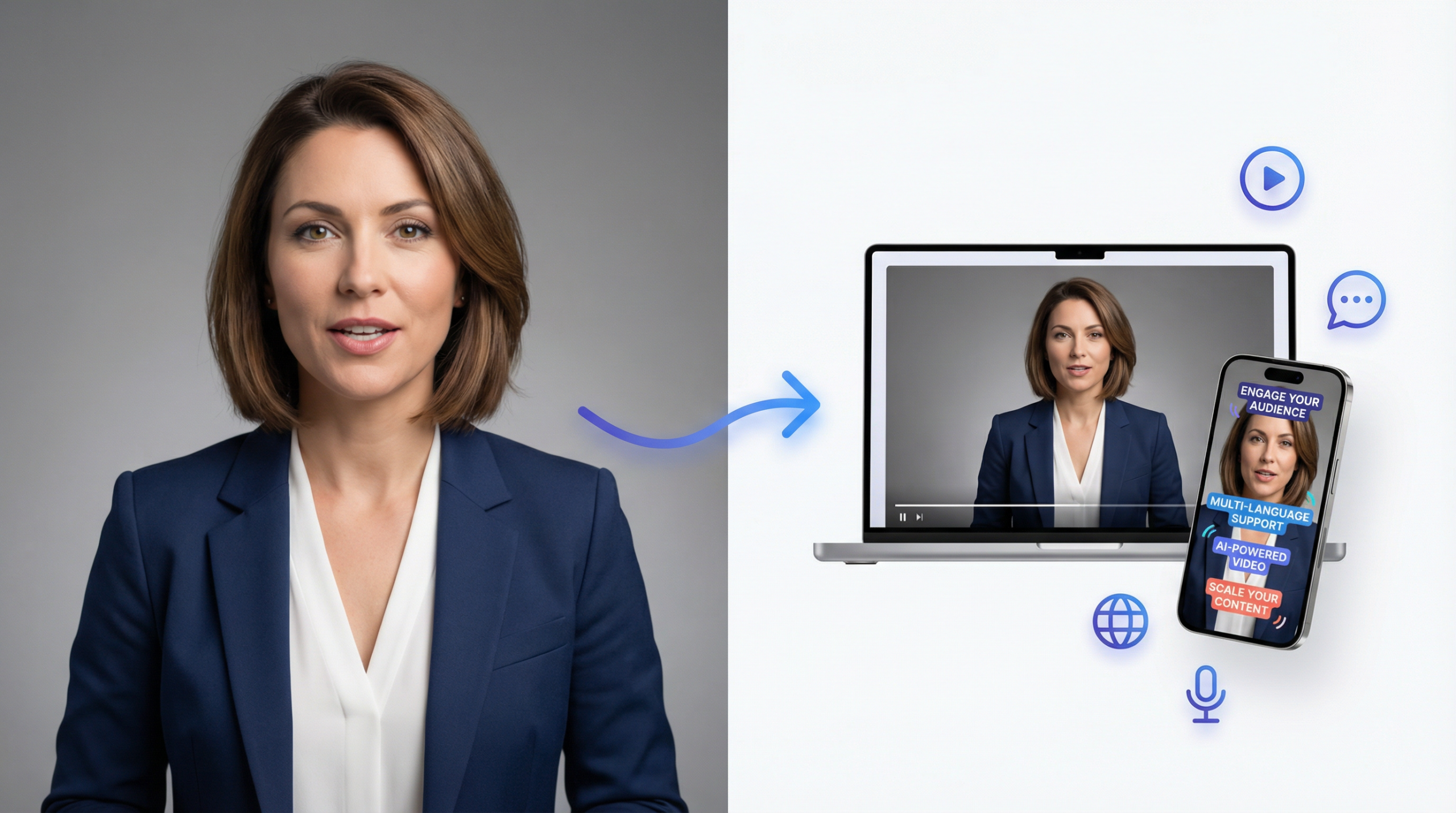
A talking head video is a video in which one person speaks directly to the camera, usually framed from the chest or shoulders up, with little else on screen. It is a go-to format for YouTube tutorials, online courses, company updates and social media clips because it feels like a face-to-face conversation.
You can film one with the phone in your pocket, or skip the camera and turn a single photo and a script into a lip-synced presenter with the AI Talking Video Generator. This guide covers both ways: real examples, a filming checklist, step-by-step AI instructions and tips that keep people watching.
What Is a Talking Head Video?
The name comes from television, where a “talking head” was a presenter or expert shown from the shoulders up, speaking to the audience. Today it means any video built around one person explaining something on camera: no big set, few cuts, just a face and a voice.
The format works because viewers can see who is talking, which builds trust, and you can make a new version whenever your message changes. You see talking heads every day:YouTube tutorials, course lessons, company training, news broadcasts, spokesperson ads and short clips on TikTok, Instagram Reels and YouTube Shorts.
Common talking head styles
- Direct to camera: the speaker looks into the lens, like a YouTube tutorial or a CEO update.
- Interview style: the speaker looks just off camera at an interviewer, as in documentaries.
- Picture-in-picture: a small talking head sits in a corner over slides or a screen recording.
- Selfie style: a handheld phone clip, typical of TikTok ads and product reviews (often called UGC, or user-generated content).
- AI presenter: a photo, an illustration or an AI actor that speaks your script with synced lips.
Talking Head Video Examples
Here are four common types, each made with AI on Easy-Peasy.AI with no camera, studio or actor.
Corporate presenter
Training videos, executive updates and product announcements suit a polished presenter in a tidy office. With AI you can rewrite the script and make a new version without booking a room or a crew.
Course instructor
An instructor talking to camera makes a lesson feel personal in a way slides cannot. A shelf, a plant and warm lamps give the frame depth, and the eye-level camera feels like a real home studio.
YouTube creator
Creators use the format for reviews, commentary and how-tos because viewers connect with a face. The microphone in shot, the colored wall and the “On Air” sign say “podcast studio” at a glance.
News anchor
The classic talking head: one presenter at a desk, framed from the waist up, with graphics behind. This clip previews the News Anchor video template, which turns an anchor photo into a broadcast-style scene.
How to Make a Talking Head Video: Two Ways
You can film yourself (option 1) or make the whole video with AI (option 2). You can also mix both: film the videos where your own face matters most, and use an AI presenter for updates, other languages and quick social clips.
| What matters | Film it yourself | Make it with AI |
|---|---|---|
| What you need | A phone or camera, a tripod, a microphone and soft light | A photo or an AI actor, a script and a voice |
| Best for | Personal brands, live reactions, behind-the-scenes clips | Courses, company updates, ads, faceless channels, other languages |
| Fixing a mistake | Record the take again | Edit the text and generate again |
| Languages | The ones you speak | Ready-made voices in more than 40 languages |
| Cost | Gear and your time | Credits for each second of video |
Option 1: Film It Yourself (Checklist)
You do not need expensive gear. Work through these eight steps and your first video will look and sound clean.
1. Write a short script
Write your first and last lines word for word, and use bullet points for the middle so you sound natural instead of reading. Keep sentences short, and read the script out loud once: if a line is hard to say, rewrite it.
2. Put your phone or camera at eye level
Your phone is enough. Mount it on a tripod with the lens at eye level, use the rear camera if you can (it is usually sharper than the selfie camera) and record in 1080p or 4K. Shoot horizontal (16:9) for YouTube and courses, or vertical (9:16) for TikTok, Reels and Shorts.
3. Frame your head and shoulders
Classic framing shows you from the chest or shoulders up, with your eyes about one third of the way down the frame. Sit a few feet in front of the wall, not against it, so the background looks deeper and you avoid hard shadows.
4. Get clean sound
Viewers forgive a slightly soft picture much sooner than echo or hiss. A clip-on (lavalier) or USB microphone close to your mouth beats the built-in mic. Record in a quiet room with rugs, curtains or a sofa, and listen to a short test with headphones first.
5. Lighting for a talking head video
Aim for soft light from the front; the easiest setup is to face a window during the day. With lamps, put one soft light at about 45 degrees to one side and slightly above eye level, plus a dimmer light or a white reflector on the other side to fill in shadows. Avoid a bright window behind you, which turns you into a silhouette.
6. Choose a simple background
A good talking head video background is tidy, has a little depth and fits your topic: a bookshelf for a teacher, a clean desk for a consultant, shelves of stock for a shop owner. Add a plant or a lamp, use your brand colors if you can, and remove clutter that pulls attention from your face.
7. Talk to the lens
Look into the camera lens, not at your own image on the screen. Speak a little slower and with a bit more energy than in normal conversation, and pause briefly between points. Several short takes are easier than one perfect long take.
8. Edit: trim, cut and caption
Most talking head video editing comes down to three jobs: cut out long pauses and mistakes (these quick cuts are called jump cuts), add captions, and show a picture or short clip when you mention something visual. In the AI Video Editor you can upload your clip, trim its start and end, generate captions, add text and images, switch the project to 9:16, 16:9 or 1:1, and export in 1080p or 4K.
Option 2: How to Make an AI Talking Head Video (No Camera)
An AI talking head video turns a still image into a presenter whose lips, face and head move in time with a voice. In Easy-Peasy.AI it takes four steps.
Step 1: Choose your presenter
Open the AI Talking Video Generator and pick one of three options under Choose Upload Type:
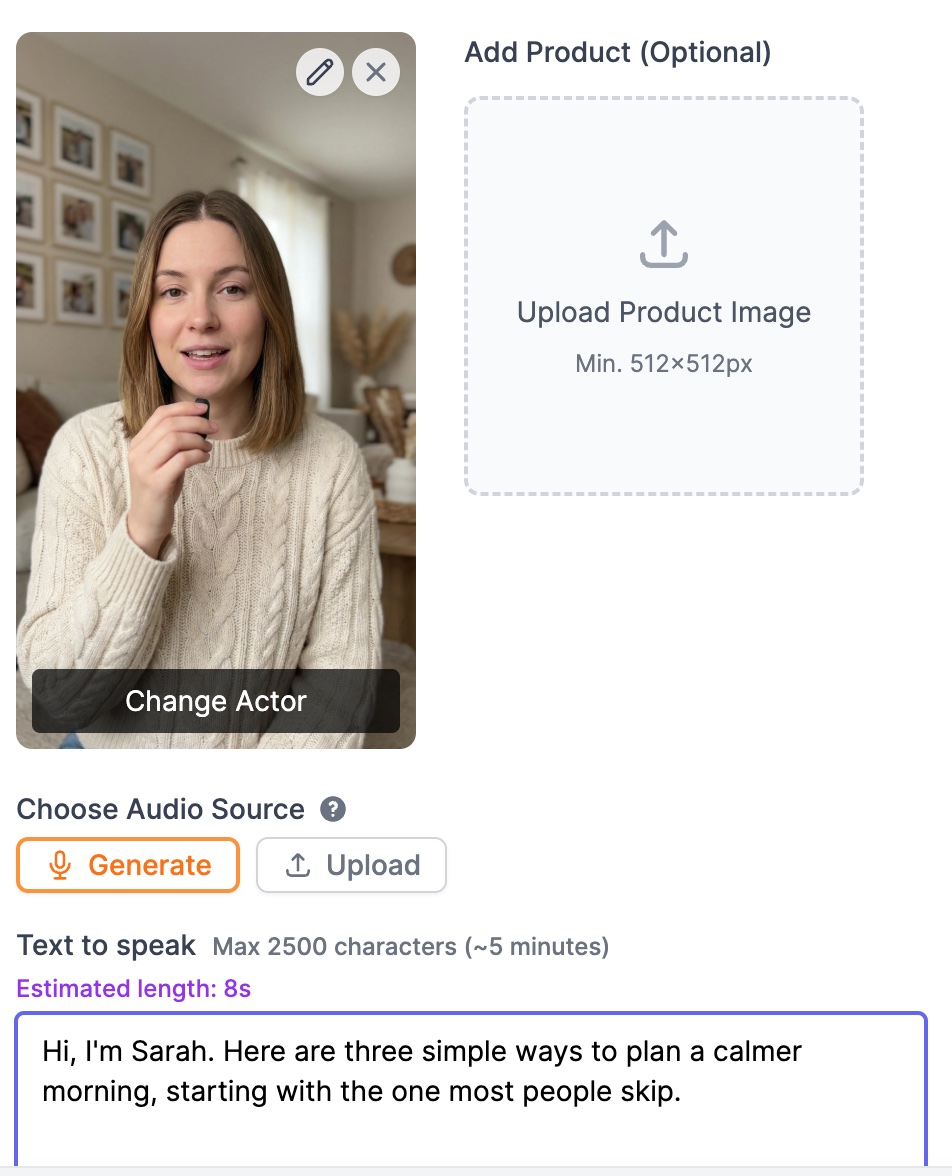
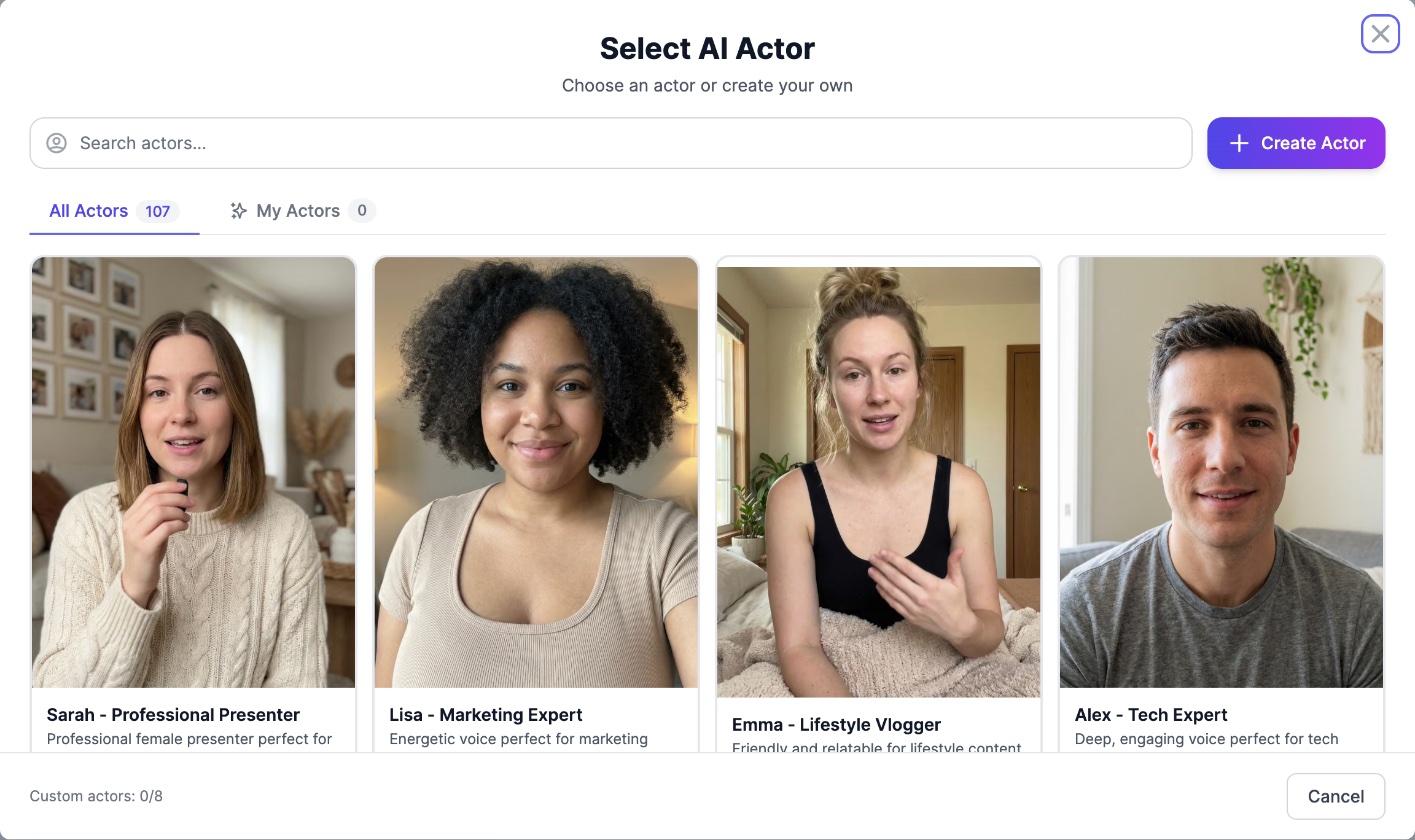
- AI Actor: browse more than 100 ready-made presenters, from news anchors and business presenters to car vloggers and podcast hosts, each with a matching voice. Click Create Actor to save your own presenter (a photo plus a voice) under My Actors; how many you can save depends on your plan.
- Image: upload a portrait (JPG, PNG or WebP, at least 512 x 512 pixels). Real photos, illustrations and cartoon or clay-style characters all work, as the Make Image Talk examples show.
- Video: upload an MP4 or MOV clip of someone talking (3 seconds to 5 minutes). The AI swaps in your new audio and re-syncs the lips, so you can change a line without filming again.
Tip: click the pencil on your photo to edit it before you animate it, with an instruction like “replace the background with a bright, tidy home office” or a new 9:16 or 16:9 frame. With an AI actor you can also use Add Product (Optional): upload a product photo and the actor is redrawn holding it. Only use photos of yourself or of people who have agreed to it.
Step 2: Add the script and the voice
Under Choose Audio Source, pick one option:
- Generate: type your script in Text to speak (up to 2,500 characters, about 5 minutes of speech). Click Change voice to browse close to 2,000 voices in more than 40 languages, filtered by language, accent, gender, age, use case or tone. English accents include Scottish, Irish, Southern and Singaporean.
- Upload: use a recording you already have (MP3, WAV, M4A, AAC or OGG, up to 5 minutes), and the presenter lip-syncs to it.
Want it to sound like you? Click Clone Your Voice and upload or record a clean sample with one speaker and no background noise. Higher plans also offer a Professional clone that captures more of your voice’s character.
Step 3: Choose captions and quality
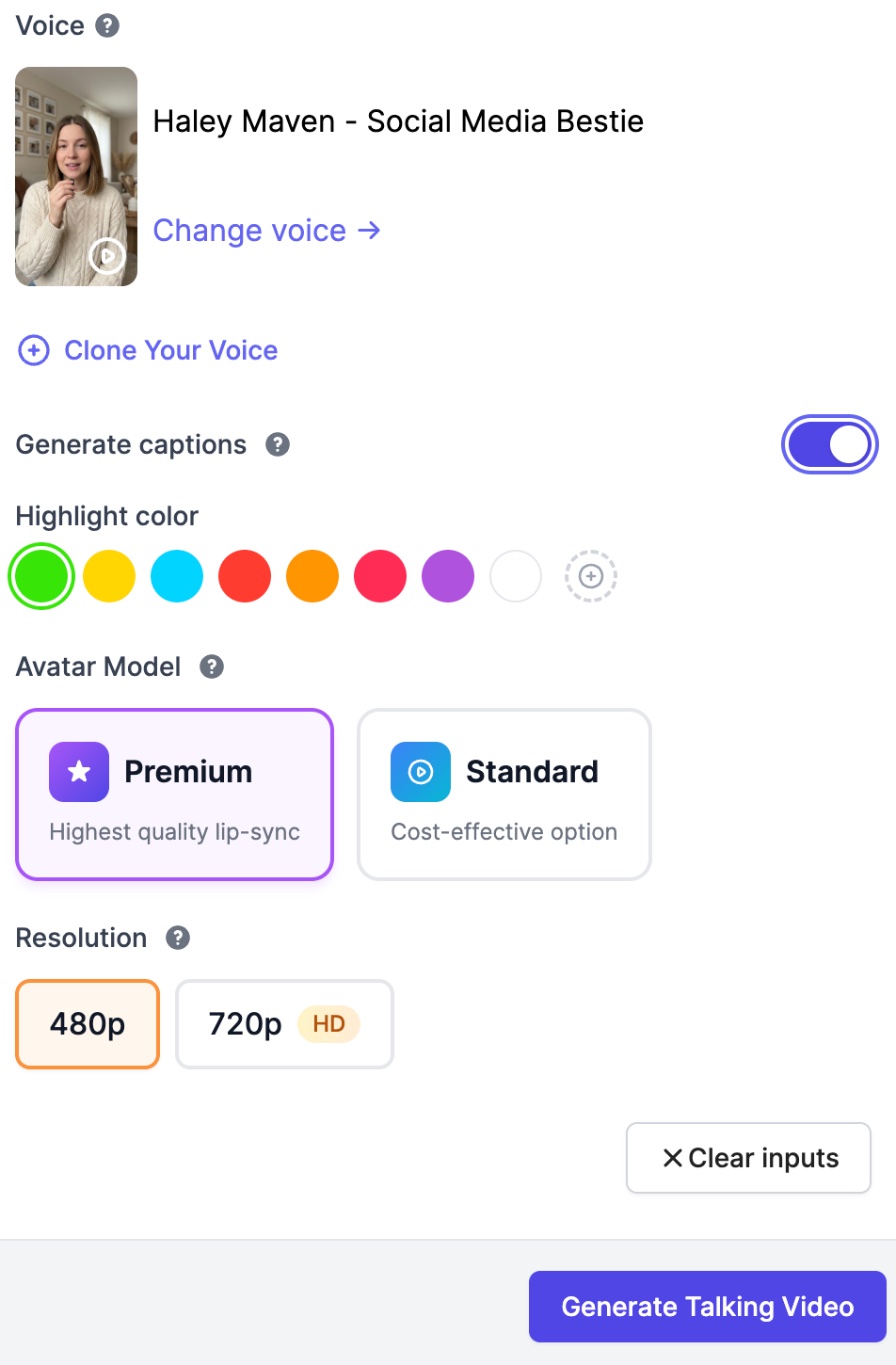
- Generate captions: adds TikTok-style animated captions. Pick a highlight color from eight presets or choose your own.
- Avatar Model: Premium gives the highest quality lip-sync, and Standard is the cost-effective option.
- Resolution: 480p or 720p HD. Premium video uploads keep your clip’s own resolution.
Each second of video costs credits, and the price is shown before you generate. On the Free plan you can make short videos with the Standard model at 480p; the length depends on the credits you have left.
Step 4: Preview, generate and download
Click Generate Talking Video. If you typed a script, a Review before generating window plays the voice first, so you can fix a word or switch voices before the video is made. Click Confirm & Generate, wait for the video to appear in your results, then open it and click Download video.
How to Keep the Same Presenter in Every Video
A series feels more professional with one host. Here are two ways to keep the same face and voice.
Reuse an AI actor or your own custom actor
Stick with one AI actor, or save your presenter with Create Actor: a custom actor stores the photo and the voice together, so every new video starts with the same face and sound. AI actor photos are vertical (9:16), which suits TikTok and Reels; for a horizontal YouTube video, switch the frame to 16:9 with the pencil first.
Use MiniMax H3 Reference for scenes with movement
When the presenter should walk, gesture or appear in different places, use the Video Generator with MiniMax H3 Reference, the reference mode of MiniMax H3. It keeps the person from your reference photo and can match the voice in a short audio clip.
- Open the Video Generator, click Add media and add your presenter photo. You can add up to 9 reference images, such as the presenter, a product and a location. Ordinary photos of real people are accepted.
- Open the Audio tab and upload a 2 to 15 second MP3 or WAV clip of the voice you want: your own recording, or a clip made in Text to Speech. An audio reference always needs at least one image reference.
- Under Model, choose MiniMax H3 Reference. If you started on MiniMax H3 (the default on paid plans), the generator switches to it for you.
- In the prompt, describe the shot, put the exact words in quotes, and add the line
Voice timbre follows reference audio 1. - Pick a length from 4 to 15 seconds, an aspect ratio (9:16 for TikTok and Reels, 16:9 for YouTube) and 768p or 2K, then generate.
Here is a prompt you can adapt:
The presenter from the reference photo sits at a tidy desk in a bright home office and speaks directly to camera, framed from the chest up. She says: “Here are three simple ways to make your mornings calmer.” Voice timbre follows reference audio 1. Static camera at eye level, soft window light, shallow depth of field.
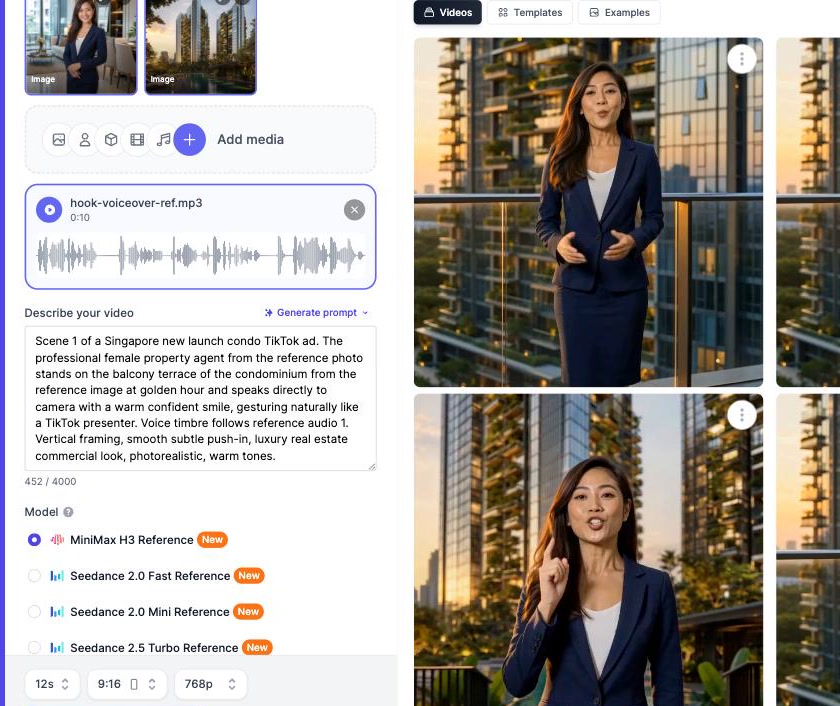
MiniMax H3 always adds its own sound to each clip and is available on paid plans. On the Free plan you can try the same idea with Seedance 2.0 Mini Reference at 480p, for clips up to 5 seconds. Make one clip per scene and join them in the AI Video Editor; for a full walkthrough, see how real estate agents make AI condo reels with one consistent face and voice.
Tips: How to Make Talking Head Videos More Engaging
Small choices decide whether people keep watching. These tips work for filmed and AI videos alike.
Hook viewers in the first few seconds
Skip “Hi, my name is…” and open with the payoff, a bold claim you can back up, or the exact question your viewer is asking. Introduce yourself once you have their attention.
Keep it moving
Cut pauses and repeated lines, and keep each video to one idea. With an AI presenter, write short sentences and split a long topic into a few short videos.
Show it with b-roll and cut-ins
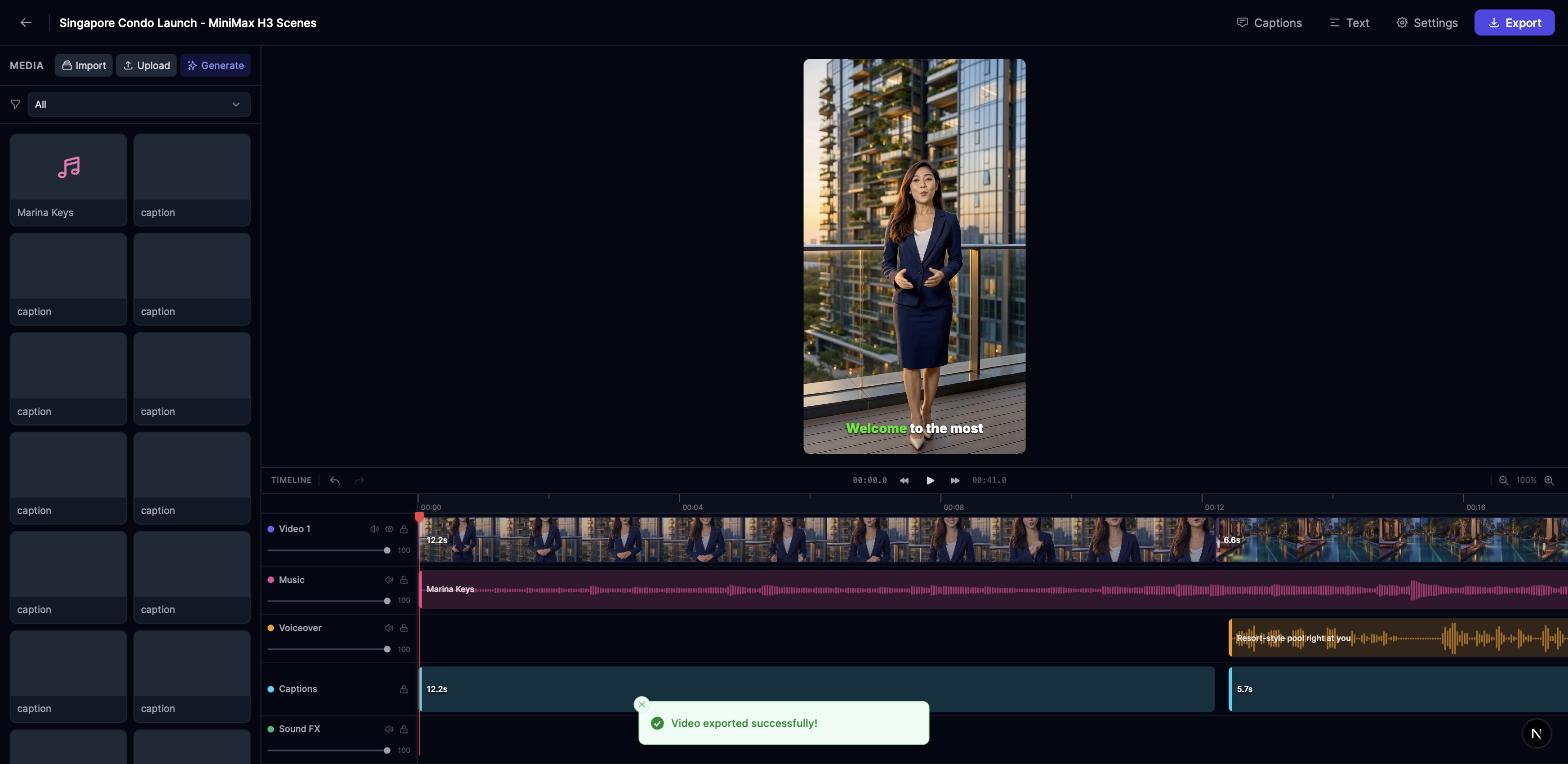
Cut away to what you are talking about: a product shot, a chart, a screen recording or a clip of the place you mention. In the AI Video Editor, clips on the image track play on top of the video track, so a picture can fill the screen while the presenter keeps talking.
Add captions and on-screen text
Many people scroll with the sound off, so captions keep them following along. Turn on Generate captions in the AI Talking Video Generator, or click Captions in the AI Video Editor to transcribe your clips (it can detect the language for you) and pick a caption style with word-by-word highlighting. Use the Text button for short labels such as a step number or a key takeaway.
Make vertical talking head videos for TikTok and Reels
For TikTok, Instagram Reels and YouTube Shorts, use a 9:16 frame and keep your face in the upper middle, away from the buttons and captions at the bottom and sides. In the AI Talking Video Generator the video keeps the shape of your photo, so start with a vertical image. For ready-made ideas, try the UGC Product Review and Multilingual Spokesperson Ad video templates.
Match the background to the message
Your background tells viewers where they are before you say a word: an office for business advice, a kitchen for recipes, a studio for a podcast. For an AI presenter it comes from the photo, so fix the setting there first.
What to Look for in a Talking Head Video App
Use this checklist to compare tools. The right column shows how Easy-Peasy.AI covers each point.
| What to look for | How Easy-Peasy.AI handles it |
|---|---|
| Presenter choice | More than 100 AI actors, your own photo, your own video, or a saved custom actor |
| Lip-sync quality | Premium for the highest quality, Standard as the cost-effective option |
| Voices and languages | Close to 2,000 voices in more than 40 languages, plus voice cloning |
| Your own audio | Upload MP3, WAV, M4A, AAC or OGG files up to 5 minutes |
| Captions | Animated captions with your choice of highlight color |
| Formats | The video keeps your photo’s shape; the AI Video Editor exports 16:9, 9:16 or 1:1 in 1080p or 4K |
| Same presenter every time | Custom actors, or MiniMax H3 Reference with a photo and a voice clip |
| No surprises | A voice preview first, and the price shown before you generate |
| Commercial use | Included on paid plans; Free plan videos are for non-commercial use |
Frequently Asked Questions
What is a talking head in video?
A talking head is a person shown from the chest or shoulders up, speaking to the camera or to an interviewer just off camera. The term started in TV news and documentaries and now covers YouTube tutorials, course lessons and social clips built around one speaker.
How do you make a talking head video?
Film yourself with a phone on a tripod at eye level, a clip-on microphone and soft light from the front, then trim pauses and add captions. Or use AI: pick an AI actor or upload a photo in the AI Talking Video Generator, add a script and a voice, and generate.
What is the best camera for making talking head videos?
For most people it is the phone you already have: recent phones record sharp 1080p or 4K video, especially with the rear camera. Spend on a microphone and soft light first, since they change the result more than a new camera. If you upgrade later, a mirrorless camera with a flip-out screen gives you a blurrier background and more control.
How do you make talking head videos more engaging?
Open with a strong hook, cut the pauses and keep each video to one idea. Add captions, on-screen text and b-roll, and use a vertical frame for TikTok and Reels.
What do most YouTubers use to record their videos?
Many YouTubers record on a smartphone or a mirrorless camera on a tripod, with a separate microphone (clip-on, USB or shotgun) and one or two soft lights. Some read from a teleprompter app, and some skip filming and use an AI presenter.
Can I stay off camera and still use my own voice?
Yes. Pick one of the AI actors or animate an illustrated or cartoon character, then clone your voice or upload your own recording so the presenter speaks with your voice.
How long can an AI talking head video be?
Each generation can run up to about 5 minutes: 2,500 characters of script or a 5-minute audio file. For longer lessons, make several parts and join them in the AI Video Editor.
Can I use these videos for commercial purposes?
Yes, on a paid plan: the Terms of Use give you full commercial rights to what you create during your subscription. Videos made on the Free plan are for non-commercial use only.
Can I try it on the Free plan?
Yes. On the Free plan the AI Talking Video Generator makes short videos with the Standard model at 480p, and the length depends on the credits you have left. Paid plans add the Premium model, 720p and enough credits for longer videos.
Start Making Your Video Today
You do not need a studio, and with AI you do not even need a camera. Choose a presenter, paste your script, pick a voice and let the AI Talking Video Generator do the rest.
Explore the AI Talking Head Video Generator, the AI Spokesperson Video Creator and the AI Talking Avatar Generator, or read our guide on how to make explainer videos with AI.